
Operating System
Cyber threats evolve daily, but these 10 actionable strategies will fortify your Windows or Mac against hackers, malware, and data breaches—without requiring technical expertise. From password mastery to smart browsing habits, these tactics work for both home users and professionals.
Enable Multi-Factor Authentication Everywhere
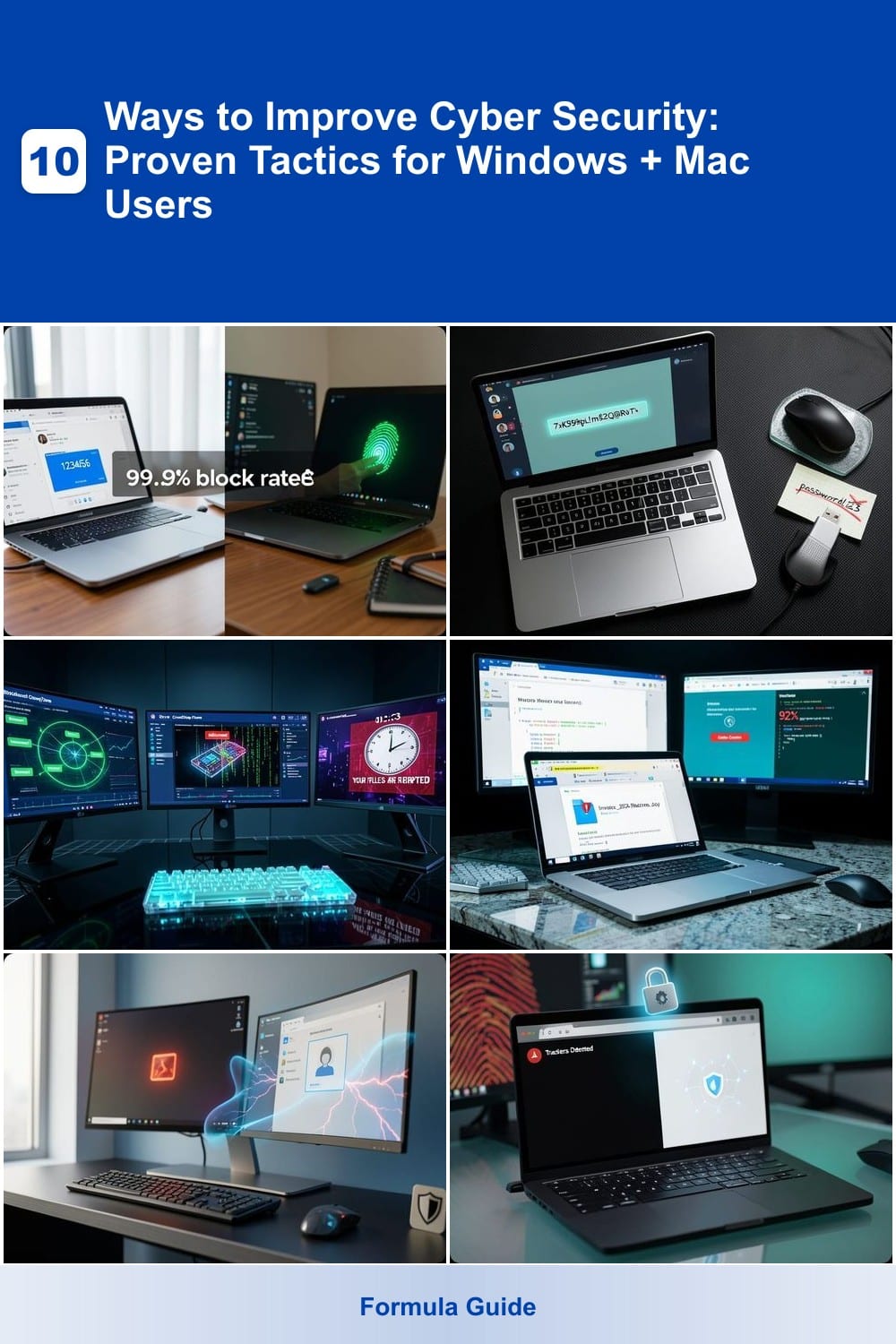
Hackers rely on stolen passwords—multi-factor authentication (MFA) shuts that down by requiring a second verification step, like a fingerprint or one-time code. With 99.9% of automated attacks blocked, this is the single most effective upgrade you can make across email, banking, and social media accounts.
Most services (Google, Microsoft, Apple, and even Facebook) support TOTP-based codes or biometric verification with zero hassle. On Windows, enable it in Settings > Accounts > Security, while macOS users can activate it via System Preferences > Apple ID > Password & Security. The best part? Most apps now offer push notifications that take seconds to approve—no more typing codes.
This works equally well for casual users protecting their social media and professionals securing work emails. Start with your most critical accounts—your bank will thank you. ✨
Use a Password Manager with 12+ Character Passphrases
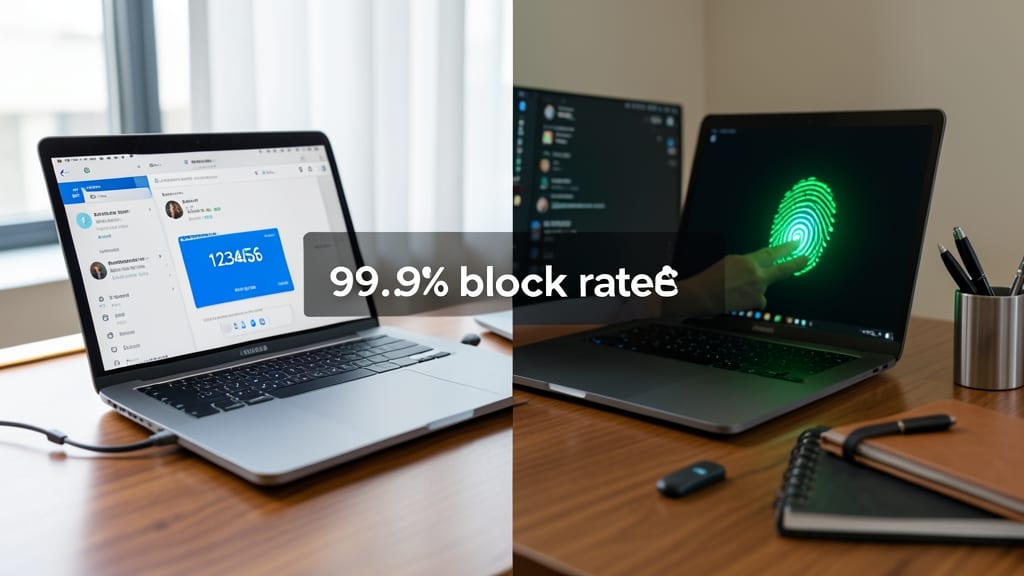
Tired of reusing the same password across accounts? A password manager with 15-character passphrase generation turns your weak security into an impenetrable fortress. These tools create and store unique, complex credentials for every account—so even if one site leaks, the rest stay safe.
Top managers like Bitwarden (free), 1Password (cross-platform), or Keeper use AES-256 encryption to lock your vault behind a single master password. Features like autofill and breach monitoring ensure you never type a password manually again—while instantly flagging compromised accounts. The best part? No more scribbled notes or browser-saved passwords. ⚡
Install Real-Time Antivirus with Ransomware Protection

Your password manager and MFA won’t stop ransomware—only real-time behavioral analysis can. Modern threats like LockBit and WannaCry encrypt files in seconds, but solutions like Bitdefender GravityZone or CrowdStrike Falcon detect suspicious processes before they execute.
These tools use AI-driven heuristics to flag zero-day exploits, sandbox unknown files, and roll back changes instantly if ransomware triggers. The best options run quietly in the background, adding less than 3% CPU usage during scans—so you won’t notice the protection until you need it.
Small businesses and remote workers should prioritize this layer, as ransomware attacks surged 137% in 2023—but even home users benefit from the peace of mind. 💪
Disable Macros in Office Documents Completely
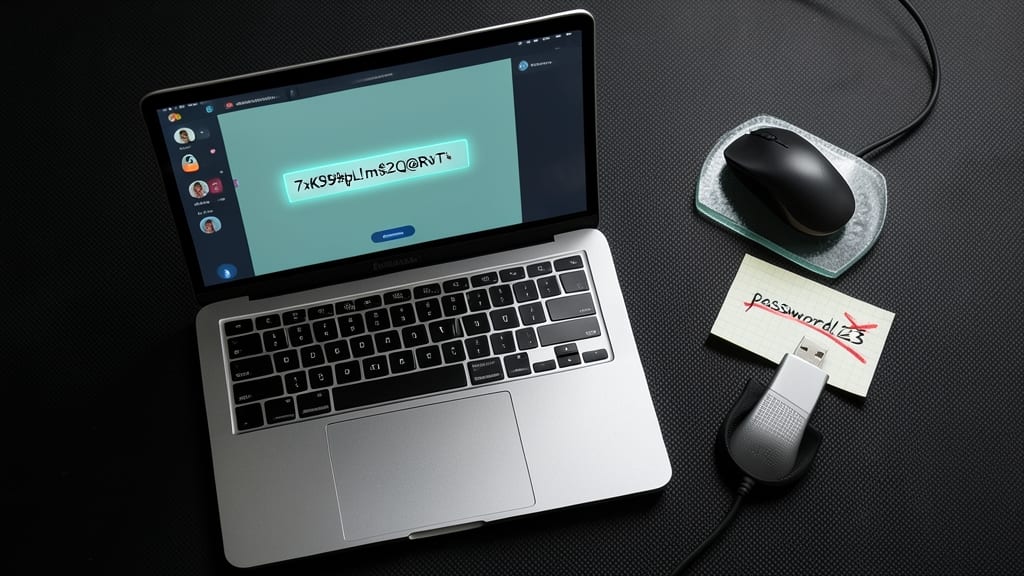
Most malware infections begin with a single click—specifically, malicious macros hidden in Word or Excel files. These automated scripts can silently install keyloggers, ransomware, or backdoors the moment you open a document. The good news? Microsoft’s built-in macro security settings can block all macro execution with just a few clicks—no third-party tools required.
To disable macros completely, open Word or Excel, go to File > Options > Trust Center > Trust Center Settings > Macro Settings, then select Disable all macros without notification. This setting prevents 90% of targeted malware from executing while still allowing you to edit documents normally. For extra security, also enable Protected View to open files in read-only mode until you verify their safety.
This is the perfect defense for professionals handling shared documents (like contracts or spreadsheets) or anyone who frequently receives files from unknown sources. It’s a zero-cost, zero-effort upgrade that stops attacks before they start. ✨
Create a Standard User Account for Daily Use
Most malware infections spread like wildfire when you’re logged in as an administrator—but this simple Windows and Mac feature can contain the damage to just one account. By creating a standard user account for daily browsing, email, and work, you’re effectively building a digital moat around your most sensitive files and system settings.
On Windows, go to Settings > Accounts > Family & other users and create a new account with standard user permissions. On Mac, use System Preferences > Users & Groups to add a non-admin account. The beauty? You can still switch to your admin account whenever you need to install software or update drivers—just log out or use the fast-user-switching feature. This way, even if malware slips through, it’s locked in a sandbox with limited access to your system’s core.
This tactic is perfect for home users, freelancers, and even small businesses where security awareness varies. It’s a zero-cost upgrade that takes less than five minutes to set up but could save hours of cleanup after an infection. 💪
Block Trackers and Ads at the Browser Level
Your browser knows more about your habits than you think—third-party trackers silently collect data on every site you visit, creating a digital fingerprint cybercriminals exploit. The solution? A lightweight extension that blocks these trackers at the source while making your browsing faster and more private.
Extensions like uBlock Origin or Privacy Badger stop 1,500+ known trackers (including Google Analytics, Facebook Pixel, and ad networks) with zero configuration. They also slash page load times by 30% by filtering out unnecessary scripts, and work seamlessly across Chrome, Firefox, and Safari without slowing down your system. The best part? They’re free and maintained by privacy-focused developers.
This is the perfect defense for casual users, journalists, or anyone concerned about digital privacy—no tech skills required. Just install, and let it handle the rest. ✨
Regularly Update All Software Automatically

Most cyberattacks exploit one thing: outdated software. Hackers scan for unpatched systems like vultures circling carrion—automating updates closes that gap before they strike. Windows Update, macOS Software Update, and tools like PatchMyPC (Windows) or Munki (Mac) can push critical fixes within 48 hours of release, covering everything from OS kernels to niche apps like Java or Adobe Reader.
Modern systems handle this effortlessly: Windows 11’s automatic updates (set to "Install updates automatically") and macOS’s App Store updates (enabled by default) require zero manual effort. For third-party apps, Scoop (Windows) or Homebrew (Mac) can auto-update hundreds of packages with a single command. The key? Prioritize security patches—never delay them for "convenience."
This is non-negotiable for anyone handling sensitive data, but even casual users benefit—90% of zero-day exploits target unpatched software. Set it up once, then forget it. Your future self will thank you. ⚡
Isolate Financial Activity with a Dedicated Device
Banking malware like Emotet and TrickBot specifically target financial accounts—so why risk exposing them on your primary device? A dedicated device (even an old laptop) or a browser profile reserved solely for banking, PayPal, and crypto wallets creates an air gap that thwarts most keyloggers and screen scrapers.
For minimalists, Firefox Multi-Account Containers lets you isolate banking in a separate profile with a single click—no extra hardware needed. If you prefer hardware separation, a used Chromebook (starting at $150) or an old Android tablet with a mobile banking app works perfectly. Just avoid logging into social media or email on these devices to maintain the isolation.
This tactic is ideal for freelancers, crypto investors, and small business owners who handle sensitive transactions daily. It’s the digital equivalent of keeping your cash in a separate wallet—simple, effective, and battle-tested. 💻
Enable Full-Disk Encryption Without Performance Loss
Your laptop or desktop holds years of sensitive data—photos, financial records, even unrecoverable work files. But if your device is lost or stolen, full-disk encryption ensures that data stays locked away unless someone knows your password. The best part? Modern encryption tools like BitLocker (Windows) and FileVault (Mac) add less than 5% CPU overhead, meaning your system runs just as smoothly as before.
On Windows, BitLocker integrates seamlessly with AES-256 encryption, while Mac’s FileVault uses XTS-AES-128—both industry-standard algorithms that meet government-grade security requirements. Neither slows down boot times noticeably, and both auto-lock after inactivity. For extra peace of mind, you can even store recovery keys in Microsoft Account (Windows) or iCloud (Mac), so you’re never locked out.
This is a must-have for remote workers, travelers, or anyone with sensitive files—whether you’re protecting client data, family photos, or just your privacy. No extra hardware or complex setup is needed. ✨
Test Your Defenses with Controlled Phishing Simulations
You’ve locked down passwords, blocked trackers, and even encrypted your drives—but what if the weakest link isn’t your tech, but your team (or you)? Microsoft Defender for Office 365 and Apple’s Security Training offer free, realistic phishing simulations that test how quickly you spot suspicious emails before attackers do.
These tools send customizable, realistic phishing emails—like fake invoices, urgent login alerts, or "security breach" warnings—then track who clicks malicious links. The best part? You get detailed reports showing which users (or you) fell for the scam, along with training to avoid future mistakes. For Windows users, Microsoft’s Security Awareness Training integrates with Outlook; Apple users can leverage Apple Business Manager for team-wide simulations.
This is a game-changer for small businesses, remote teams, or anyone who handles sensitive data—because phishing doesn’t discriminate. Try it today to turn potential victims into vigilant defenders. 💡