
Tip & Trick
Working remotely introduces new security risks—but you don’t need a cybersecurity degree to stay safe. These 10 simple, actionable best practices will help you lock down your digital workspace in minutes, whether you're using a home PC or a coffee shop Wi-Fi.
Enable Two-Factor Authentication Everywhere
If you’ve ever worried about someone hacking into your email or cloud accounts, two-factor authentication (2FA) is your first line of defense—no coding skills required. It adds an extra layer of security by requiring a second verification step (like a code from an app or text) after entering your password, making unauthorized access nearly impossible.
Most major services—Google, Microsoft, Dropbox, and even banking apps—support 2FA with authenticator apps (like Google Authenticator or Authy) or SMS codes. Setting it up takes just a few minutes, and the peace of mind is worth it. Even better, many platforms now offer FIDO2 security keys for an even stronger shield against phishing attacks.
This is the #1 security habit for remote workers, freelancers, and anyone handling sensitive data. Start with your most critical accounts today—your future self will thank you. ✨
Use a Dedicated Work VPN
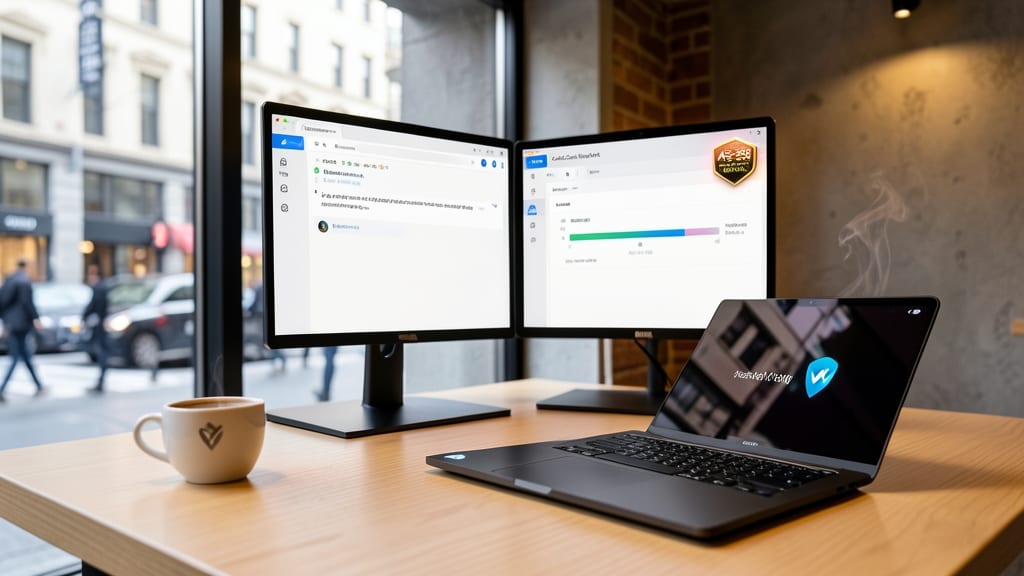
Public Wi-Fi is convenient—but also a hacker’s playground. A dedicated work VPN creates an encrypted tunnel for all your traffic, blocking snoopers from intercepting emails, logins, or file transfers, even on unsecured networks.
Top-tier services like NordVPN or ExpressVPN offer military-grade AES-256 encryption, kill switches (to block traffic if the VPN drops), and split tunneling (to route only work traffic securely). Many include ad-blockers and multi-device support, making them perfect for freelancers juggling laptops and phones.
This is your first line of defense when working from cafes, airports, or shared offices—no tech skills required. Just install, connect, and focus on your work. 💻
Secure Your Home Wi-Fi Network
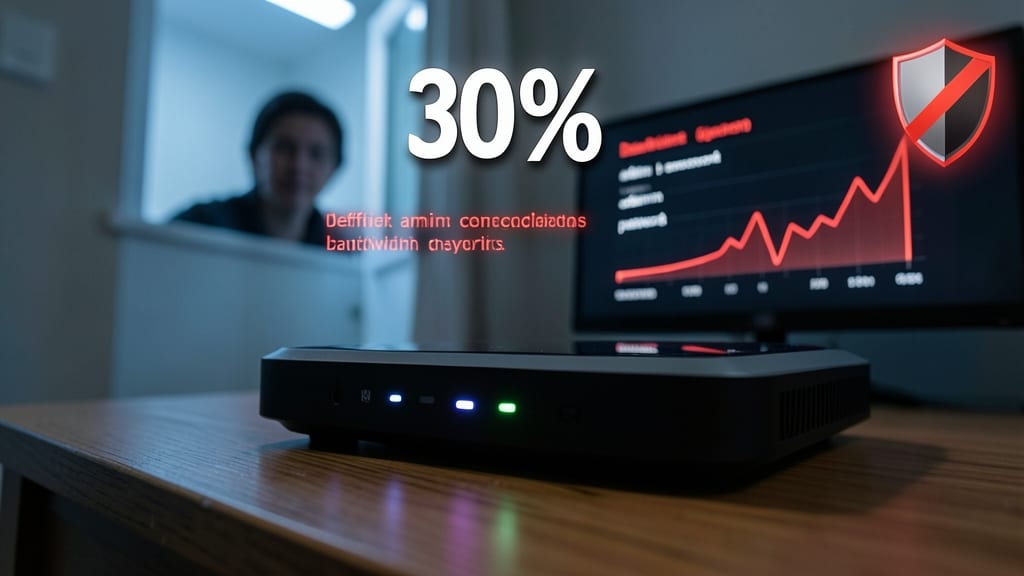
Your home Wi-Fi isn’t just a convenience—it’s a potential security gap that hackers and nosy neighbors can exploit. A shocking 30% of routers ship with default admin credentials still active, making them prime targets for unauthorized access and bandwidth theft.
Start by changing your router’s default SSID (network name) and admin password—this alone blocks most casual intruders. Enable WPA3 encryption (or WPA2 if unavailable) and disable the WPS feature, which has known vulnerabilities. For extra protection, set up a guest network for visitors and enable the router’s built-in firewall to block suspicious traffic.
Remote workers relying on home networks should also check their router’s firmware for updates—many manufacturers release patches monthly. A secure router isn’t just about speed; it’s your first line of defense against data leaks and performance drag from freeloaders. ✨
Password-Protect All Devices Immediately
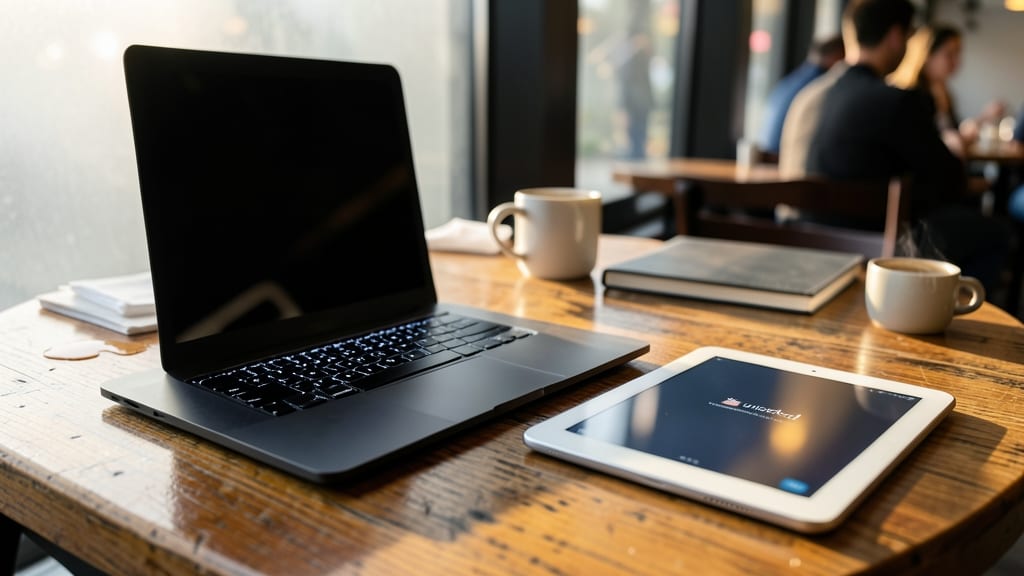
Your laptop or tablet sitting unlocked on a café table is an open invitation for trouble—even a 4-digit PIN or simple passphrase creates a critical first line of defense against theft or prying eyes.
Most modern devices let you set this up in under a minute: Windows has Windows Hello (fingerprint/face unlock), macOS offers Touch ID, and Android/iOS both support PIN, pattern, or biometric locks. For secondary monitors, check your display’s settings—many allow guest mode or password protection to prevent unauthorized access when you step away.
This is especially smart for travelers, contractors, or anyone sharing workspace—even a quick setup deters opportunistic theft and keeps your files private. 💻
Regularly Update Software Automatically
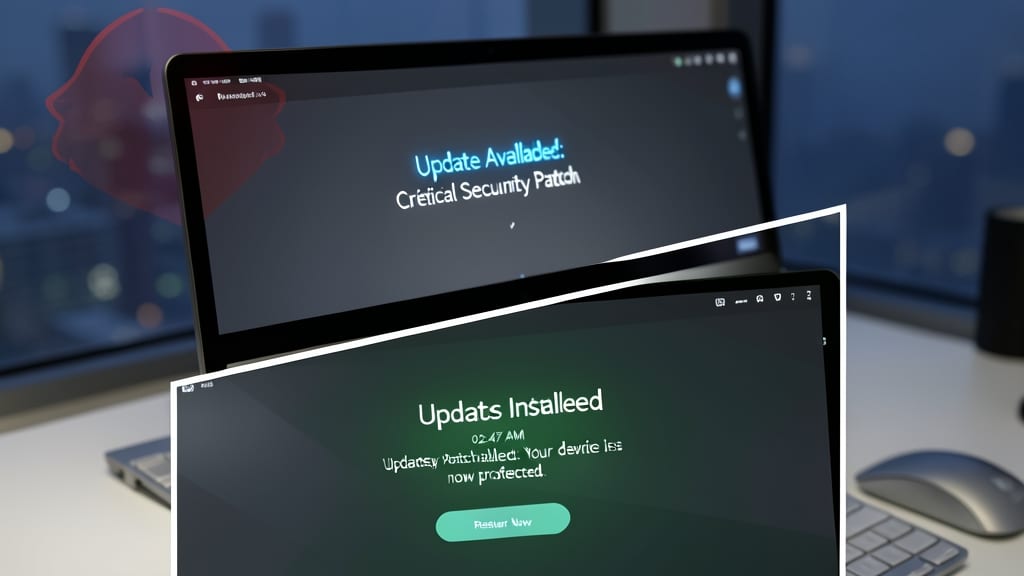
Hackers don’t wait for you to remember to update your software—so why should you? Automatic updates close security gaps within minutes of discovery, often before cybercriminals can exploit them. Most modern operating systems and apps offer this feature, but many users overlook enabling it.
On Windows, enable automatic updates via Settings > Windows Update > Advanced options, where you can choose to install updates as soon as they’re available. Mac users can set this in System Preferences > Software Update, while mobile devices (iOS/Android) have built-in options under General > Software Update. Even third-party apps like browsers and security tools (e.g., Chrome, Zoom) let you toggle auto-updates in their settings.
This is the ultimate "set it and forget it" security measure—ideal for busy remote workers who prioritize protection without manual effort. Once configured, your devices stay fortified with minimal effort. ✨
Avoid Public Wi-Fi for Work Tasks
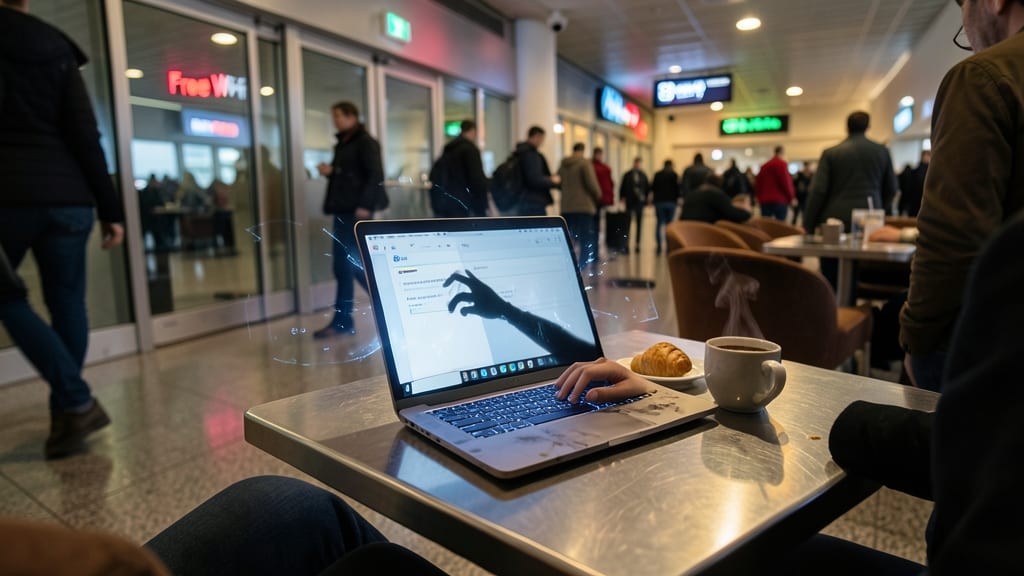
Public Wi-Fi networks at airports, cafes, and hotels are like open doors for hackers—man-in-the-middle (MITM) attacks intercept unencrypted data in seconds. Even a quick email check can expose login credentials or financial details if you're not protected.
Instead of risking it, use your mobile hotspot (most phones have this built-in) for a private connection, or pair your VPN with public networks for an extra layer of security. Services like ProtonVPN or NordVPN offer free tiers that block ads and trackers while encrypting traffic—no tech skills required.
This is especially critical for freelancers, contractors, or anyone handling client data on the go. A few extra clicks now prevent headaches (and potential data breaches) later. 💪
Store Sensitive Files in Encrypted Cloud Storage
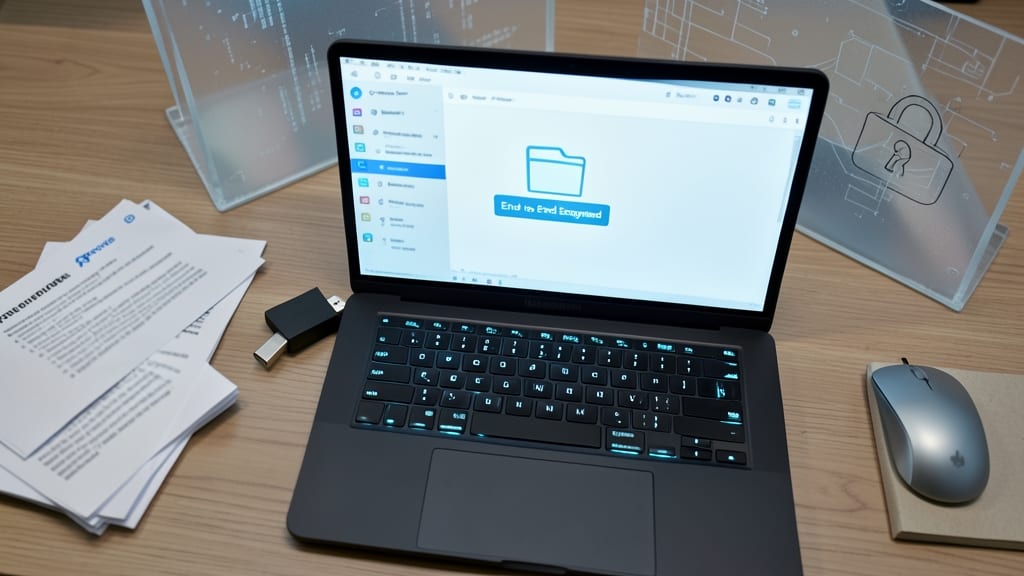
Tired of worrying whether your shared team documents are truly secure? End-to-end encrypted cloud storage like Cryptomator or Proton Drive ensures only you (and your team) can access files—no third-party access, ever. These tools encrypt files on your device before they ever hit the server, so even if someone breaches the cloud provider, your data stays locked down.
With zero-configuration encryption, you can upload sensitive contracts, client data, or financial reports without manual key management. Cryptomator integrates seamlessly with Google Drive, Dropbox, or OneDrive, while Proton Drive offers built-in encryption with 256-bit AES—industry-standard security. Both support collaborative editing (via encrypted links) so remote teams can work together without exposing raw files.
This is the go-to solution for legal teams, freelancers with NDAs, or anyone sharing confidential files. No VPN or complex setups needed—just drag, drop, and rest easy knowing your data stays yours. 💻
Disable Automatic File Sharing Features
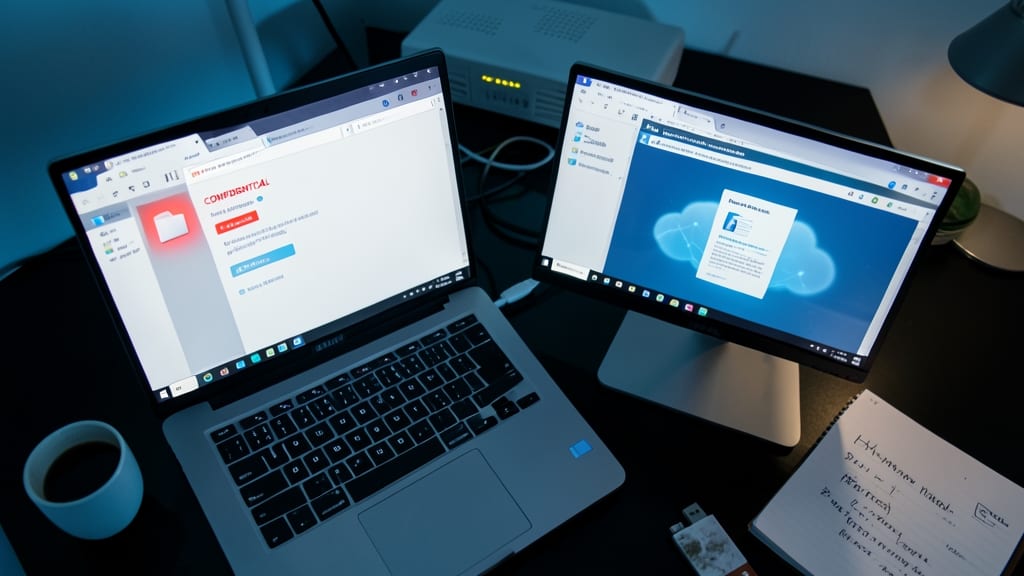
Ever accidentally shared a work file with the wrong person—or worse, left sensitive documents exposed on a public network? Both Windows and macOS enable file sharing by default, often without your knowledge, creating hidden security risks for remote workers.
On Windows, disable Network Discovery and File Sharing in Control Panel > Network and Sharing Center. For macOS, turn off File Sharing in System Preferences > Sharing and revoke any lingering guest access permissions. These tweaks prevent unauthorized devices from browsing your files—even on trusted networks. A quick audit of shared folders can also reveal lingering exposures from past projects.
This is especially critical for freelancers handling client data or employees with confidential contracts. Spend five minutes disabling these features now, and you’ll sleep better knowing your files stay private—no matter who’s on your network. ✨
Use a Virtual Private Desktop for Sensitive Work
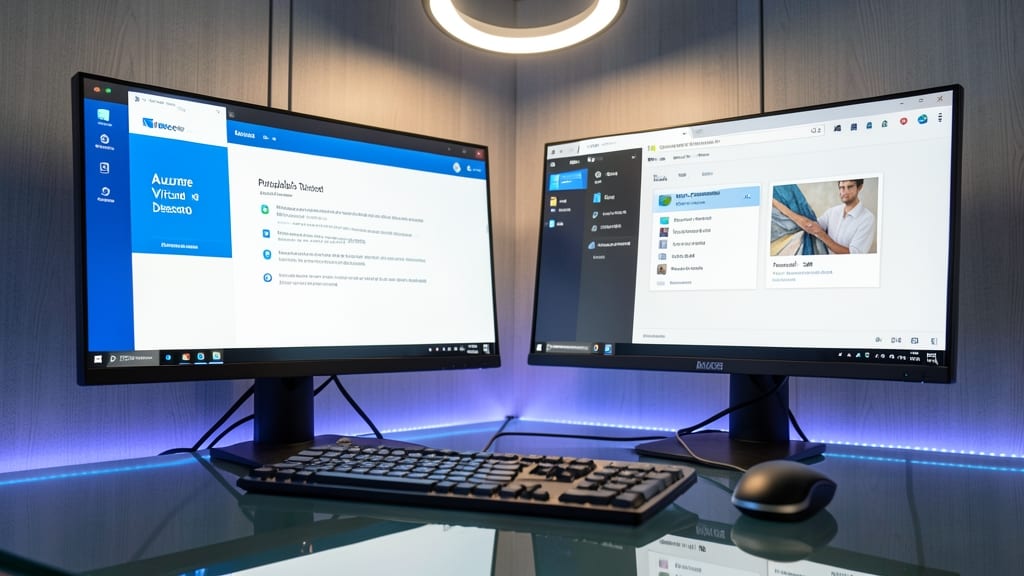
Tired of mixing work and personal browsing only to worry about accidental data leaks? A virtual private desktop creates a completely isolated digital workspace—like having two separate computers in one.
Services like Microsoft Azure Virtual Desktop or Parallels Desktop let you run a full Windows or macOS environment inside your existing OS. This means your confidential emails, client files, and financial documents never touch your personal browser history or cookies. Even if malware slips past your defenses in one session, it can’t jump to your work files.
This is a game-changer for freelancers, accountants, and healthcare professionals handling sensitive data. Set it up once, and you’ll never have to worry about cross-contamination again. ✨
Train Family Members on Basic Security
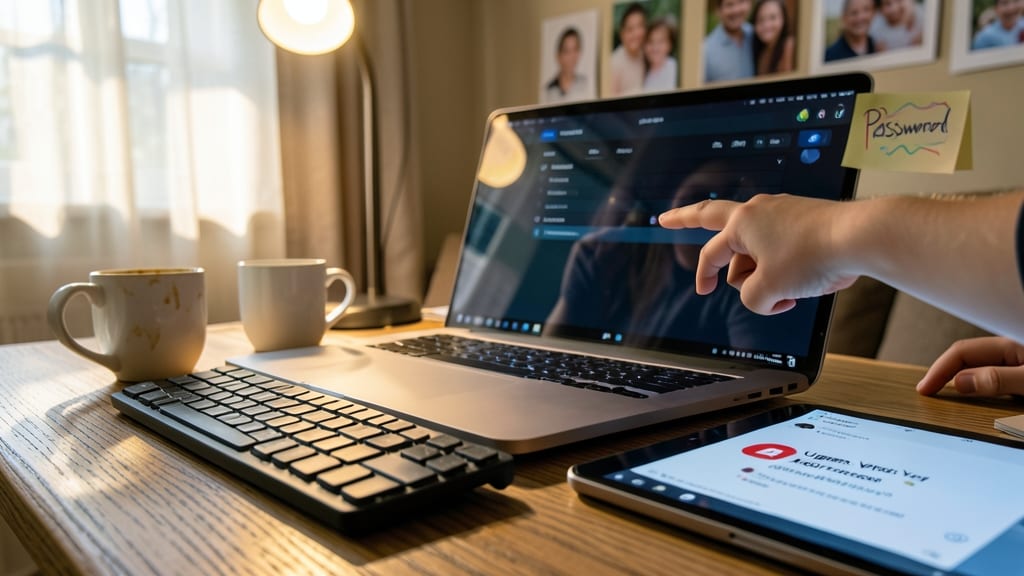
Your family’s curiosity—or even well-meaning help—could accidentally expose your work accounts. A 10-minute security chat with household members can prevent phishing scams, password leaks, or malware spread from shared devices.
Start with three simple rules: never share passwords, avoid clicking suspicious links (even from "trusted" senders), and log out of work accounts when done. Use a shared family password manager like Bitwarden (free tier available) to store non-work credentials securely. For kids, enable strict browser controls (e.g., Google Family Link or Microsoft Family Safety) to block risky sites.
This is especially critical if your family shares devices—80% of remote breaches start with an insider mistake. A quick discussion can save headaches (and data) down the line. 💡