
Coding
Excel’s math and trigonometric functions unlock powerful data analysis and engineering capabilities. From financial modeling to physics simulations, these 10 essential formulas will transform how you work with numbers in spreadsheets.
SUM Function for Basic Arithmetic Operations

If you’ve ever spent hours manually adding up numbers in spreadsheets, the SUM function in Excel is your time-saving superpower. Whether you're crunching sales figures, tracking inventory, or calculating project budgets, this function automates the arithmetic—eliminating errors and saving hours of manual work.
With just =SUM(range), you can add values across a single row, column, or even non-adjacent cells (e.g., =SUM(A1:A10,C5:D15)). Excel handles up to 255 arguments, and it dynamically updates when your data changes. For financial summaries, use SUMIF or SUMIFS to add values based on conditions—like summing all sales in a specific region or product category.
This is the first function every Excel user should master—perfect for accountants, project managers, and small business owners who rely on quick, accurate calculations. ⚡
SIN, COS, and TAN for Trigonometric Calculations

When your work involves angles, waves, or periodic data—like structural engineering or signal processing—Excel’s SIN, COS, and TAN functions become indispensable. These trigonometric tools don’t just calculate ratios; they automatically convert degrees to radians, ensuring precision without manual adjustments.
Use SIN(angle) to find the ratio of the opposite side to the hypotenuse, COS(angle) for adjacent-to-hypotenuse ratios, and TAN(angle) for opposite-to-adjacent. For example, SIN(90) returns 1 (or #VALUE! if degrees aren’t converted—Excel handles this internally). These functions integrate seamlessly with other math tools, like PI() or RADIANS(), for complex calculations.
Perfect for civil engineers designing bridges, electrical engineers analyzing waveforms, or scientists modeling vibrations, these functions save hours of manual computation. ⚡
POWER Function for Exponential Growth Models

Tired of manually calculating compound interest or population growth? The POWER function in Excel handles exponential models effortlessly—whether you're projecting loan repayments or modeling bacterial cultures.
With POWER(base, exponent), you can instantly compute values like 210 = 1,024 or 1.0524 (future value of $1 at 5% annual interest). The function even works with negative exponents for reciprocals, like POWER(4, -2) = 0.0625. No more guesswork for financial analysts or scientists!
Perfect for budget planners, biologists, or anyone modeling growth patterns—this function turns complex math into a single click. ✨
AVERAGE Function for Statistical Analysis

When your dataset includes outliers or skewed distributions, the AVERAGE function becomes your statistical lifeline. Unlike SUM, which simply adds values, AVERAGE divides the total by the number of entries, revealing the true central tendency of your data—whether you're analyzing customer satisfaction scores, manufacturing defect rates, or A/B test performance.
Simply type =AVERAGE(range) in any cell, and Excel instantly calculates the mean. For example, =AVERAGE(B2:B100) processes 99 data points in milliseconds. The function even ignores empty cells and text entries, making it resilient for messy real-world datasets. Add AVERAGEIF or AVERAGEIFS for conditional calculations (e.g., average sales per region or product category).
This is the workhorse for quality assurance teams, UX researchers, and financial analysts who need to spot trends hidden in variability. Master it, and you’ll transform raw numbers into actionable insights. ✨
ASIN, ACOS, and ATAN for Inverse Trigonometry

Need to find an angle when you only have the sides of a triangle? ASIN, ACOS, and ATAN are your inverse trigonometry power tools in Excel. These functions calculate angles from ratios—perfect for physics simulations, navigation algorithms, or structural engineering designs where precision matters.
Use ASIN to find an angle from its sine (e.g., =ASIN(0.5) returns 30°), ACOS for cosine-based angles, or ATAN for tangent-based calculations. All require inputs between -1 and 1 (or -π/2 to π/2 for ATAN) and return results in radians by default—just multiply by 180/PI() to convert to degrees. ⚡
ROUND and ROUNDDOWN for Precision Control

Tired of messy decimal places ruining your financial reports or manufacturing specs? The ROUND and ROUNDDOWN functions are your secret weapons for clean, consistent numbers in seconds.
Use ROUND(number, decimals) to control decimal places—like turning 3.14159 into 3.14 with just two decimal spots. ROUNDDOWN forces numbers down to the nearest whole number, perfect for inventory counts or budget allocations. Both work across all Excel versions and handle negative numbers seamlessly.
Accountants, engineers, and scientists rely on these to eliminate rounding errors in critical calculations. For example, ROUNDDOWN ensures you never overestimate material costs in production runs. ✨
FACT Function for Permutations and Combinations

Need to calculate 120! (120 factorial) without pulling out a calculator? Excel’s FACT function does it in a flash—no manual multiplication required. This function instantly computes factorials (n × (n-1) × ... × 1), which are the backbone of probability theory, combinatorics, and algorithmic efficiency.
Simply type =FACT(number) in any cell, and Excel returns the result. For example, =FACT(5) returns 120, while =FACT(10) gives 3,628,800. It’s especially useful for solving permutations (nPr) and combinations (nCr)—just divide the factorial results to get your answer. The function handles values up to 170! (the maximum Excel can display), making it perfect for complex statistical modeling.
Statisticians analyzing survey data, cryptographers designing encryption schemes, and logistics planners optimizing routes will find this function indispensable. It’s the secret weapon for turning tedious calculations into one-click solutions. ✨
LOG and LOG10 for Exponential Scaling

When dealing with data that spans orders of magnitude—like sound intensity or chemical acidity—Excel’s LOG and LOG10 functions transform overwhelmingly large (or tiny) numbers into manageable scales. These functions are the secret weapon for chemists, audio engineers, and computer scientists analyzing exponential growth patterns.
The LOG function calculates the natural logarithm (base e), while LOG10 uses base 10—perfect for converting pH levels (where each unit represents a 10x change in acidity) or decibel measurements (where every 10dB is a 10x sound intensity increase). For algorithmic complexity, you can use LOG2 to estimate steps in binary search trees or compression ratios. Both functions handle negative numbers gracefully with error handling.
If you work with science datasets, audio processing, or computational theory, these functions will save you hours of manual scaling. Just remember: LOG10(100) = 2 means 100 is 10²—simple, but powerful for visualizing exponential trends. ✨
RADIANS Function for Angle Conversions
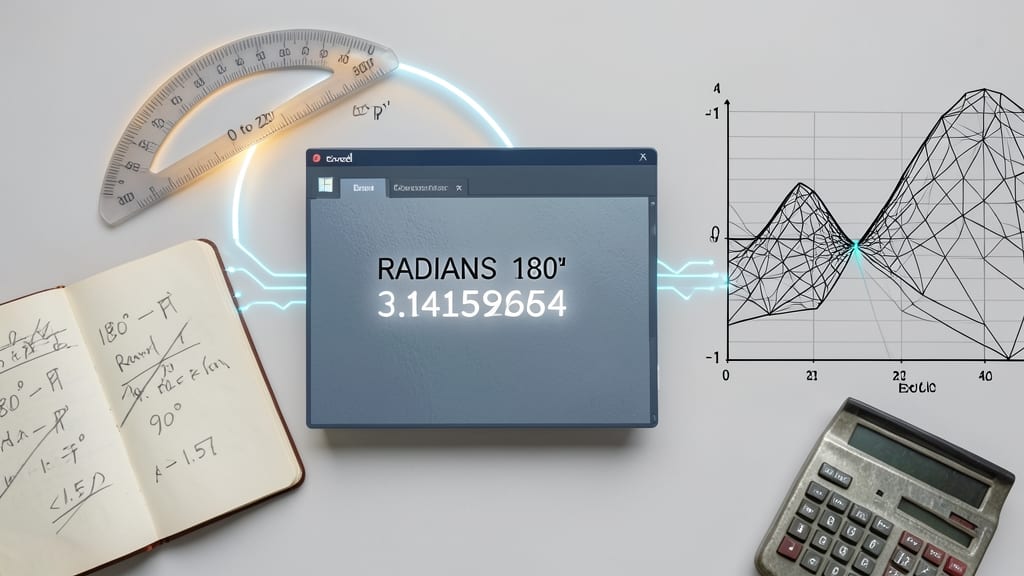
Ever spent hours manually converting degrees to radians before running trigonometric calculations? The RADIANS function in Excel eliminates that frustration with a single, precise conversion—no complex formulas needed.
Simply input your angle in degrees (e.g., RADIANS(180)), and Excel instantly returns the radian equivalent (3.14159). This is a game-changer for physics simulations, astronomy models, and engineering designs, where unit consistency is critical. Pair it with SIN, COS, or TAN for seamless calculations without unit mismatches.
Perfect for students, researchers, and professionals who need trigonometry accuracy without manual conversions. Say goodbye to approximation errors! ✨
MOD Function for Cyclic Calculations

Need to find patterns in repeating cycles? The MOD function in Excel is your secret weapon for handling modulo arithmetic with precision.
Simply use =MOD(number, divisor) to calculate remainders—perfect for scheduling systems (like rotating shifts), cryptography (hashing algorithms), or financial cycles (monthly billing reminders). For example, =MOD(10,3) returns 1, revealing the remainder after division. It even handles negative numbers correctly, unlike basic division.
Developers, analysts, and engineers will love how MOD simplifies complex calculations—whether you're debugging code, optimizing workflows, or analyzing periodic data. 💻