
PowerPoint
PowerPoint transitions can transform a dull presentation into an engaging experience. These seven transition effects help maintain audience focus, emphasize key points, and create smooth slideshow flow—perfect for both professional and casual presentations.
Fade Transition for Subtle Professional Presentations

Need a transition that whispers instead of shouts? The Fade effect in PowerPoint is the stealthy MVP of corporate presentations, blending slides seamlessly without drawing attention away from your content. Unlike flashy animations, it maintains a polished, distraction-free flow that keeps your audience focused on your message—not the visuals.
Available in all modern PowerPoint versions (2016, 2019, 365, and Mac), the Fade transition offers customizable speed (from 0.5x to 4x) and optional sound effects for subtle emphasis. Its zero-motion design ensures compatibility even on older hardware, making it a reliable choice for boardrooms and client meetings alike. Pair it with a black or white fade for maximum professionalism.
Perfect for executives, trainers, and anyone delivering high-stakes presentations where elegance matters more than spectacle. ⚡
Slide Morph for Dynamic Data Visualization
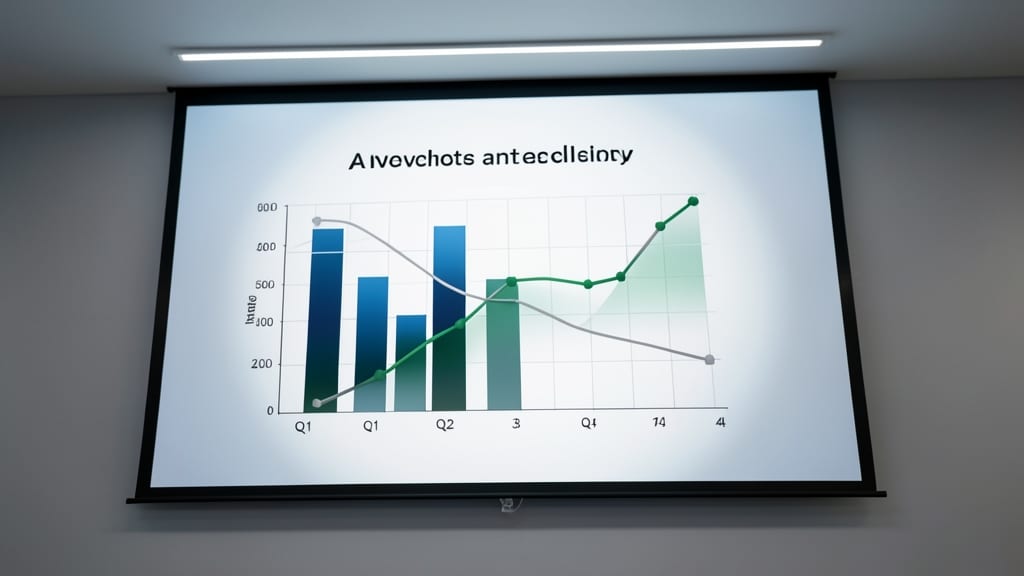
When your slideshow includes complex datasets or evolving visuals, the Slide Morph transition turns static charts into dynamic storytelling tools. Unlike basic fades, this effect smoothly reshapes one slide into another—ideal for comparing trends, transforming bar graphs into line charts, or morphing maps to highlight geographic shifts.
Available in PowerPoint 2016 and later, Slide Morph works best with vector-based shapes (like SmartArt or inserted charts) and offers customizable timing to control the animation pace. The zero-configuration setup in newer versions means you can apply it in seconds—just select your slides and let the magic happen. For data analysts or educators, this transition bridges the gap between raw numbers and intuitive insights.
Perfect for business analysts, researchers, or teachers presenting evolving data—think quarterly reports, scientific findings, or step-by-step processes. It’s the secret weapon for making your audience see the connections in your numbers. ✨
Push Transition for Emphasizing Key Slides
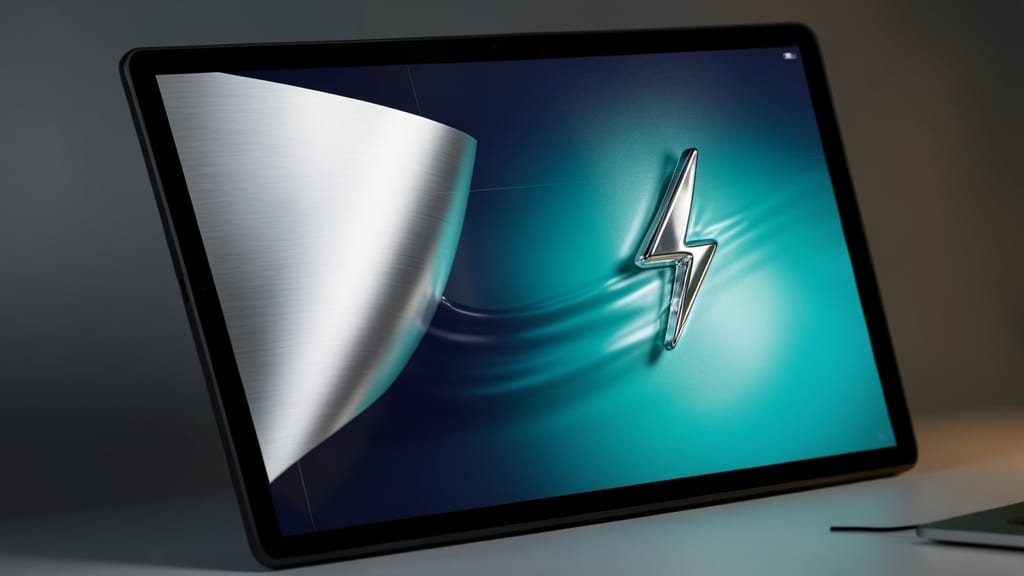
When you need to grab your audience’s attention mid-presentation, the Push Transition delivers with a bold, directional motion that feels intentional. Unlike subtle fades or morphs, this effect physically pushes the current slide away—left, right, up, or down—while the next one glides into place, creating a dynamic pause that signals importance.
Available in all modern PowerPoint versions (2016, 2019, 365, and Mac), the Push Transition lets you control speed (slow to fast) and even add sound effects for extra emphasis. The directional control (e.g., pushing from the left for a "next step" feel) makes it ideal for highlighting milestones, conclusions, or call-to-action slides where you want to ensure no one misses the shift.
Trainers, sales professionals, and educators will love this transition for key moments—like revealing a solution or summarizing a point. Pair it with a short pause (0.5–1 second) to maximize impact. ✨
Zoom Transition for High-Impact Reveals
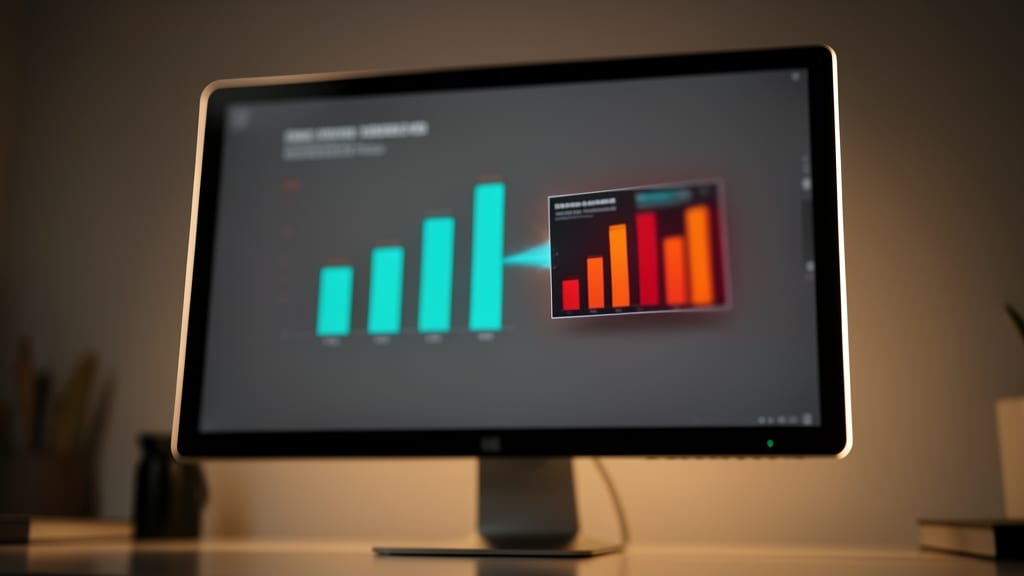
Want to make your audience lean in when you reveal a game-changing statistic or launch into a bold new idea? The Zoom transition delivers that cinematic "wow" factor by scaling content from a small preview to full-screen in one smooth motion.
PowerPoint’s Zoom effect lets you control the zoom direction (in or out) and speed to match your presentation’s energy. Pair it with a sound effect (like a subtle "whoosh") to amplify the impact, or keep it silent for a sleek, professional reveal. Works seamlessly across PowerPoint 2016, 2019, and 365, including Mac versions.
Perfect for keynote speakers, sales pitches, or product launches where you need to command attention. Just don’t overuse it—save the zoom for moments that truly deserve the spotlight! ✨
Wipe Transition for Creative Storytelling

Bring your presentations to life like a cinematic storyteller with PowerPoint’s Wipe Transition—the secret weapon for narrative-driven slideshows. This effect mimics the fluidity of page-turning or scene changes, making it perfect for creative projects where you want to guide your audience through a journey.
The Wipe Transition offers six directional options (left, right, up, down, vertical blinds, and horizontal blinds), letting you control the flow of your story. You can adjust the speed to match your pacing and even add a sound effect for extra impact. It’s especially useful for storyboarding, portfolio reviews, or educational content where transitions need to feel intentional yet smooth.
This is your go-to for educators, marketers, and artists crafting presentations that feel dynamic yet polished. Just avoid overusing it—like any good story, pacing matters! ✨
Fade Through Black for Minimalist Transitions
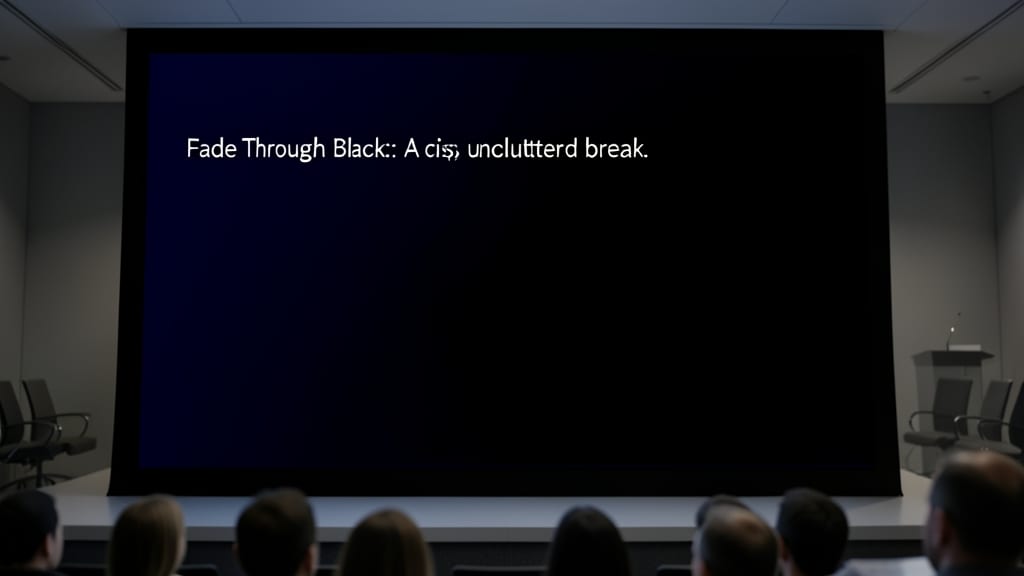
When your presentation demands polished professionalism without visual distractions, Fade Through Black delivers a sleek, modern touch. Unlike standard fades, this transition darkens the screen completely between slides, creating a crisp, uncluttered break that resets focus effortlessly.
The effect works seamlessly across PowerPoint 2016, 2019, and 365, with customizable timing (0.1 to 5 seconds) to match your pacing. Pair it with black slide backgrounds for a cohesive look, or use it sparingly to signal section changes—ideal for financial reports, corporate decks, or minimalist portfolios.
Perfect for presenters who prioritize clarity over flash, this transition subtly elevates slideshows without competing with content. 🌟
Box In or Out for Structured Transitions
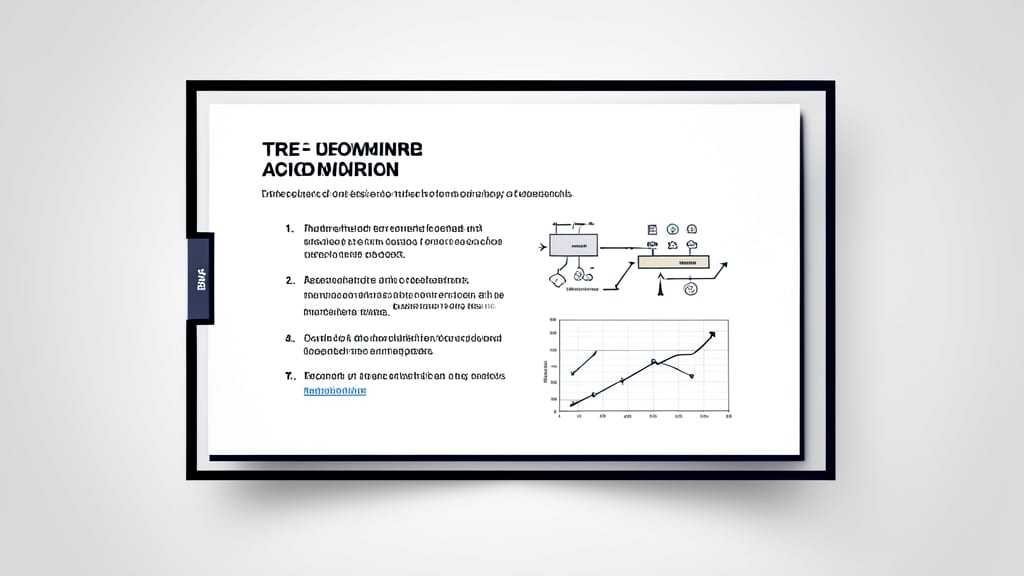
When your presentation follows a clear, step-by-step process—like tutorials, training sessions, or academic lectures—the Box In or Out transition acts like a visual roadmap. Instead of fading or morphing, it frames each slide with a clean, rectangular border that either expands inward or outward, creating a structured, almost "chapter marker" feel.
This effect works best with directional cues: "Box In" feels like closing a chapter, while "Box Out" signals moving forward. The customizable border colors (matching your theme) and adjustable speed let you control pacing, ensuring your audience stays aligned with your logical flow. Unlike dynamic transitions, it avoids distractions while reinforcing organization.
Educators, trainers, and technical presenters will love this for its clarity and predictability. It’s the perfect choice when you want to guide your audience through a process without overwhelming them with motion. ✨