
Troubleshooting
IT support teams lose countless hours chasing down repetitive issues. These 10 knowledge base articles cover the most common tech problems—from printer errors to login failures—with step-by-step solutions that save time and reduce frustration for both agents and end-users.
How to Fix Printer Connection Errors in Windows
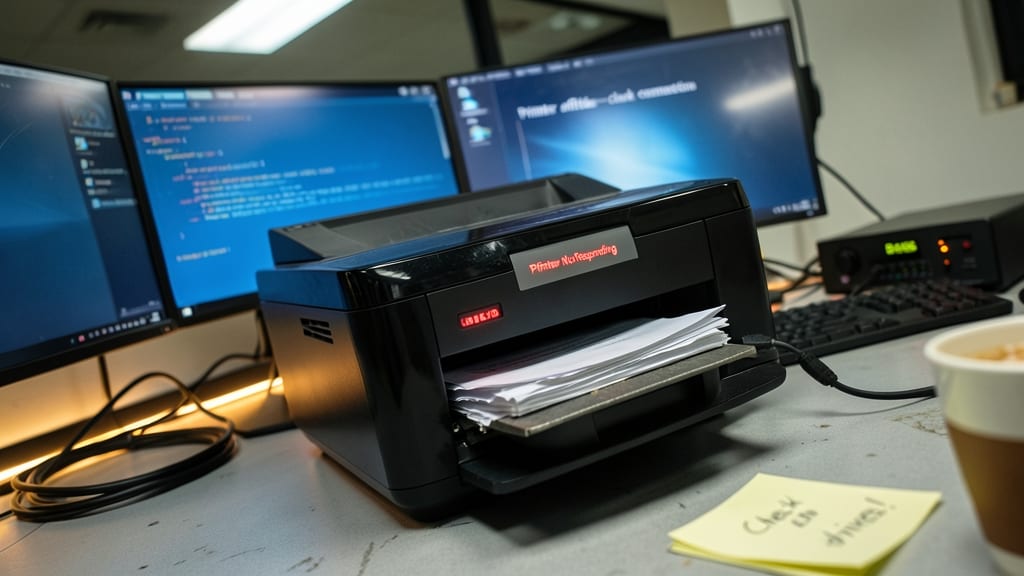
Frustrated by that "Printer Not Responding" error message? You’re not alone—this is the #1 hardware issue IT teams face daily, costing offices hours in lost productivity. Whether your printer is wired or wireless, the fix often lies in simple but overlooked steps like driver updates or network resets.
Start by reinstalling the printer driver—open Device Manager, locate your printer under Print queues, right-click to Uninstall device, then restart Windows to force a fresh driver install. For wireless printers, check your network adapter settings in Control Panel to ensure the printer’s IP is listed under Network Discovery. If the issue persists, run Windows Network Troubleshooter (search in the Start menu) to automatically detect and resolve connection conflicts.
This guide is perfect for IT admins, office managers, and help desk teams—save it as a quick-reference cheat sheet for when printers inevitably throw a tantrum. ⚡
Resolving Outlook Email Delivery Failures Step-by-Step
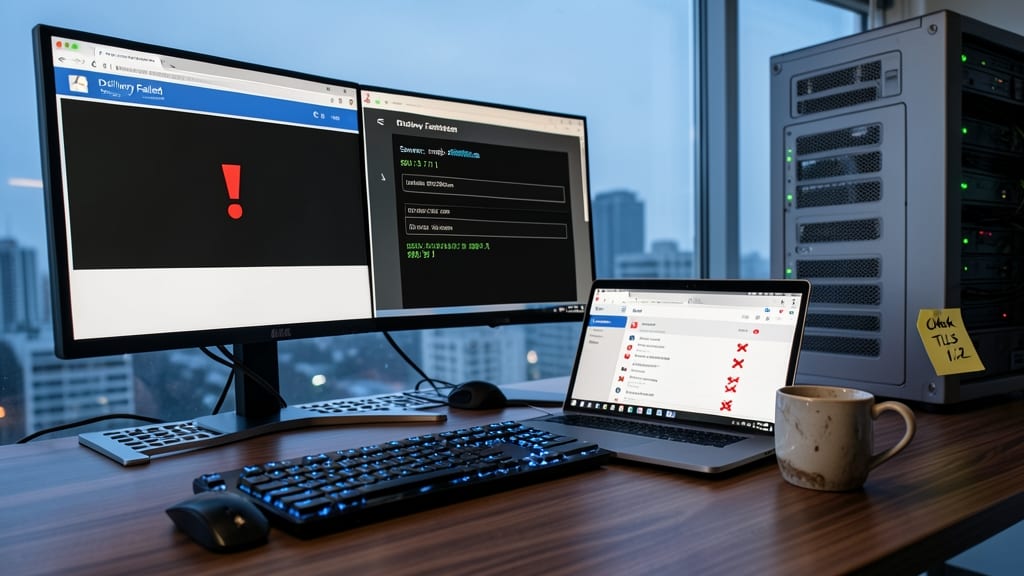
When critical emails vanish into the void, your team’s workflow grinds to a halt—unless you know where to look. This guide tackles Outlook delivery failures head-on, covering SMTP authentication errors, blocked sender lists, and misconfigured server settings with screenshot-based troubleshooting for Outlook Desktop and Web.
Start by checking the SMTP server response codes (e.g., 5.7.1 for blocked senders or 5.5.0 for authentication failures) in Outlook’s Send/Receive Groups under Test Email AutoConfiguration. For blocked senders, verify the Exchange Admin Center or Office 365 Security & Compliance for quarantine policies. Server misconfigurations? Reset Outlook’s profile settings or test with telnet to confirm port 587 (TLS) or 465 (SSL) connectivity. The included Outlook Troubleshooting Tool (download link) automates common fixes like clearing cached credentials.
Perfect for IT admins managing Exchange/Office 365 or small-business owners whose entire operations hinge on email reliability. Pro tip: Bookmark this alongside your password reset guide—both are lifesavers during "all-hands" crises. ⚡
Quick Fixes for Slow Windows Performance and Lag
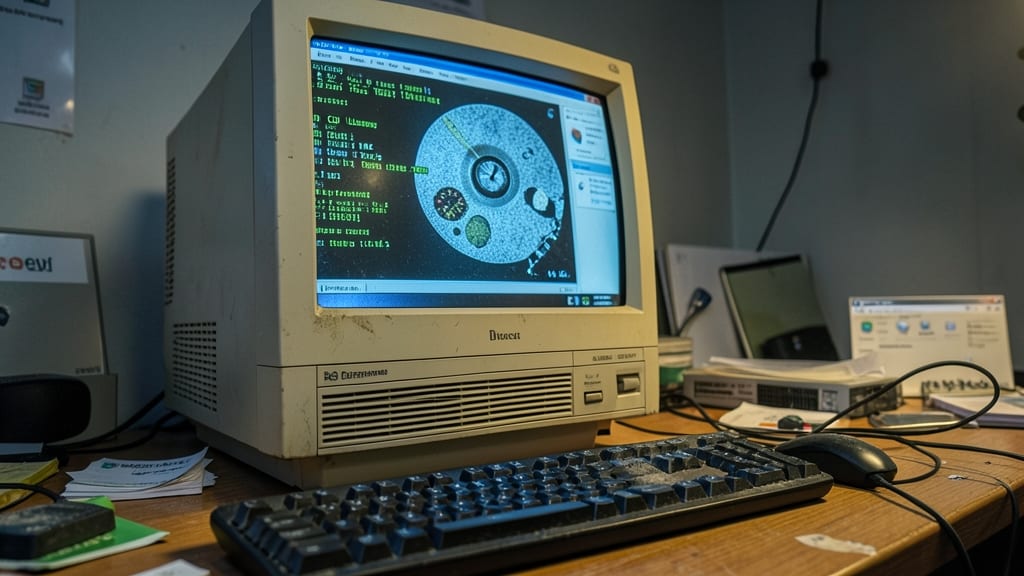
When your Windows PC crawls like it’s running on a 1998 Pentium II, the culprits are almost always the same: bloatware hogging resources, background apps draining CPU, or fragmented disks slowing down file access. These quick fixes tackle the top three performance killers without requiring advanced tech skills.
Start by disabling startup programs (use Task Manager > Startup tab) to cut unnecessary boot-time delays. Next, identify CPU-hogging processes in Task Manager and end tasks like Spotify, Chrome tabs, or OneDrive syncs that shouldn’t run in the background. For disk issues, run chkdsk /f in Command Prompt (admin) to scan for errors, then defragment your drive (or optimize for SSDs via Optimize-Drive in PowerShell).
Non-technical users can rely on Windows’ built-in tools, while IT pros might add third-party utilities like CCleaner for deeper cleanup. These steps work across Windows 10/11 and require minimal downtime. ⚡
Password Reset Guide for Active Directory Users
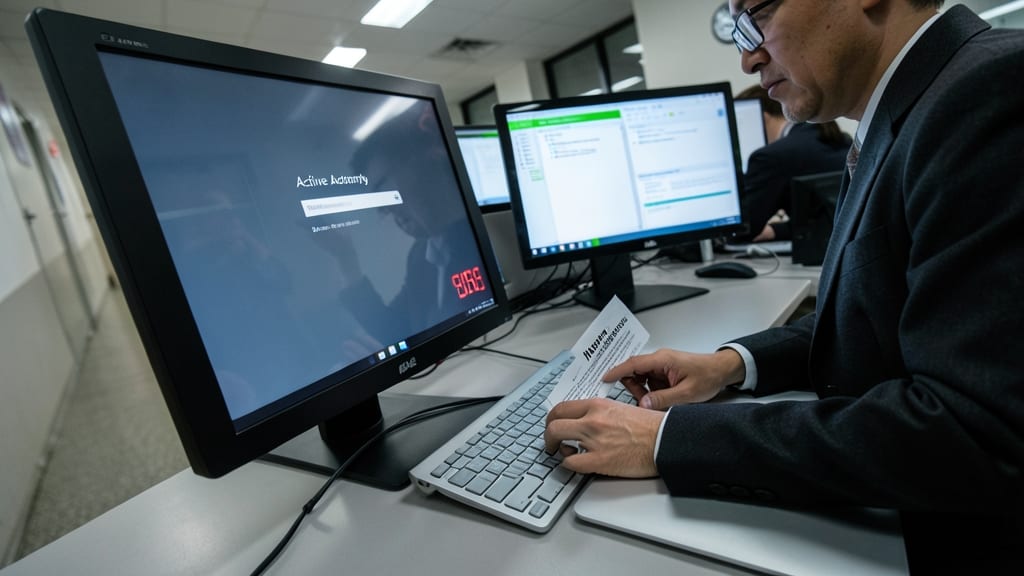
When a locked-out employee can’t access their workstation, the clock starts ticking on productivity—and your help desk’s patience. This Password Reset Guide for Active Directory Users cuts through the chaos by offering step-by-step instructions for both self-service resets and IT-admin interventions, with visual aids for on-premises and Azure AD environments.
For end-users, the guide covers Ctrl+Alt+Del workflows, self-service password reset portals, and multi-factor authentication (MFA) bypasses when needed. Admins get PowerShell scripts for bulk resets, group policy tweaks to enforce password complexity, and cloud AD troubleshooting for hybrid setups. Screenshots of the Active Directory Users and Computers (ADUC) console and Microsoft Entra ID (Azure AD) portal ensure clarity.
Ideal for help desks supporting Windows domains, this guide reduces ticket volume by empowering users while giving IT admins proactive tools to audit and secure accounts. ⚡
Troubleshooting VPN Connection Issues on Windows and Mac
Remote work just got smoother with this platform-specific VPN troubleshooting guide—because nothing kills productivity faster than a dropped connection. Whether you're dealing with split tunneling misconfigurations, expired certificates, or stubborn firewall blocks, this article delivers the exact fixes IT teams need for Windows 10/11 and macOS Ventura/Monterey.
Dive into step-by-step solutions for common errors like "Error 807" (Windows) or "Connection Failed" (macOS), including how to reset network settings, verify certificate trust chains, and adjust firewall rules for VPN apps. The guide even covers split tunneling setups—critical for developers who need local access while connected to a corporate network.
Perfect for hybrid teams and remote workers who can't afford downtime. Bookmark this for your next support call—it’s the one-stop shop for VPN headaches. ✨
Fixing PowerPoint Presentation Errors Before Meetings
Nothing ruins a meeting faster than a PowerPoint file that won’t open—or worse, crashes mid-presentation. These pre-meeting checks prevent last-minute disasters by addressing corrupted files, missing fonts, and broken embedded media before they derail your pitch.
Use Microsoft’s built-in recovery tool (File > Open > Browse > Recover Unsaved Files) for corrupted PPTX files, or Stellar Repair for PowerPoint for severe damage. For missing fonts, embed them via File > Options > Save > Embed fonts in the file, and test compatibility using PowerPoint’s Compatibility Checker (File > Info > Check for Issues). Embedded media? Always save videos/audio as local copies (not links) and verify playback with File > Export > Create Video before the meeting.
Perfect for presenters, trainers, and IT support teams who need foolproof pre-flight checks. No more frantic last-minute fixes—just smooth, error-free slides. ✨
Linux Command Line Basics for IT Support

Supporting mixed environments? Mastering the Linux command line isn’t just for DevOps—it’s a game-changer for IT support teams dealing with servers, containers, or even hybrid Windows/Linux setups. These 10 essential commands (and cheat sheets) will let you troubleshoot file permissions, manage processes, and analyze logs like a pro.
Start with file navigation (ls, cd, pwd) and permissions (chmod, chown)—critical for fixing access issues. Use top/htop to identify rogue processes draining resources, and grep/journalctl to parse logs faster than GUI tools. For sysadmins, ssh and scp streamline remote server management, while systemctl handles service restarts without rebooting entire systems.
Perfect for IT teams supporting Linux servers, Docker/Kubernetes environments, or mixed Windows/Linux desktops. Bookmark these cheat sheets for zero-config troubleshooting in high-pressure scenarios. ✨
How to Recover Deleted Files from Windows Recycle Bin
Accidentally deleted a critical file? Don’t panic—Windows’ Recycle Bin recovery and Shadow Copy features often save the day, even after emptying the bin. This guide covers both manual methods (like Previous Versions) and third-party tools like EaseUS Data Recovery, with screenshots for Windows 10/11 and older versions.
First, try File History or Previous Versions (right-click the folder > Properties > Previous Versions). For deeper recovery, enable Volume Shadow Copy via VSSadmin in Command Prompt. Third-party tools scan unallocated space for deleted files, often restoring them intact. Always act fast—overwritten files are lost forever.
IT teams will love the step-by-step screenshots for training, while casual users benefit from the zero-config recovery options. Perfect for offices where accidental deletions happen daily. ✨
Configuring Firewall Rules for Remote Access Tools
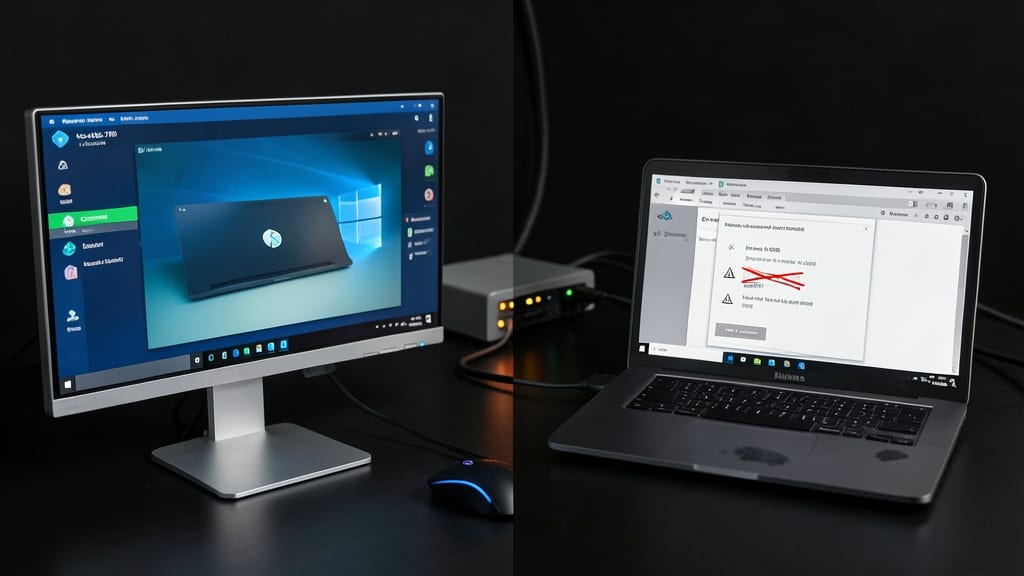
Remote access tools like TeamViewer or AnyDesk are lifesavers for IT support—but only if your firewall lets them through. Misconfigured rules can block connections entirely, leaving you stuck troubleshooting from across the room. The fix? Platform-specific firewall configurations that balance security with accessibility.
On Windows, use Windows Defender Firewall to create inbound rules for TCP ports 5938 (TeamViewer) or 8000 (AnyDesk). For macOS, edit the pf firewall rules via /etc/pf.conf or use Little Snitch for granular control. On Linux, allow connections with ufw (e.g., sudo ufw allow 5938/tcp) or iptables. Always restrict access to trusted IPs to prevent unauthorized remote access.
This setup is ideal for help desk teams managing remote diagnostics or MSPs supporting clients across platforms. A properly configured firewall ensures secure, uninterrupted access without sacrificing security. 💻
Diagnosing and Fixing Blue Screen Errors in Windows
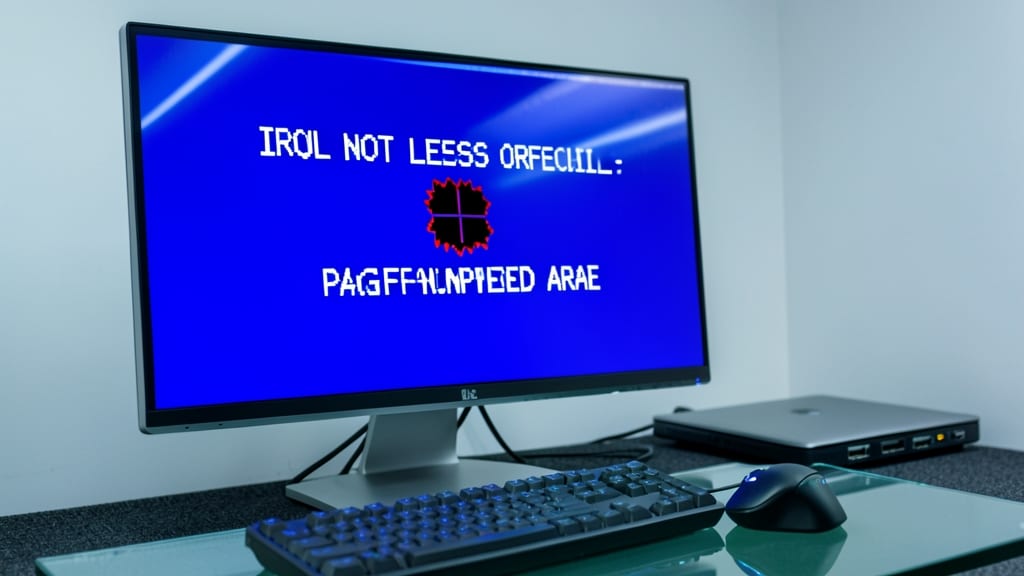
When your screen suddenly turns blue with cryptic error codes like IRQLNOTLESSOREQUAL or PAGE_FAULT, panic sets in—but these BSODs (Blue Screens of Death) often have straightforward fixes. Unlike vague system crashes, these errors usually point to specific hardware or driver issues, making them easier to diagnose than they seem.
Start by noting the error code—tools like Windows Event Viewer or BlueScreenView decode them instantly. For driver-related crashes, update graphics, chipset, or network drivers via Device Manager or Windows Update. If the issue persists, test your RAM with Windows Memory Diagnostic or run chkdsk /f in Command Prompt. For stubborn problems, a System Restore to a stable point often revives the PC without data loss.
This guide is perfect for IT support teams dealing with end-user crashes or home users who dread rebooting after a BSOD. With these steps, you’ll turn a frustrating crash into a quick recovery. 💻