
Tip & Trick
Struggling to find files in your Microsoft ecosystem? Mastering file naming conventions can save you hours of frustration. These best practices will help you organize files in Windows, OneDrive, and Office Suite like a seasoned professional.
Date-Based Naming for Chronological Organization
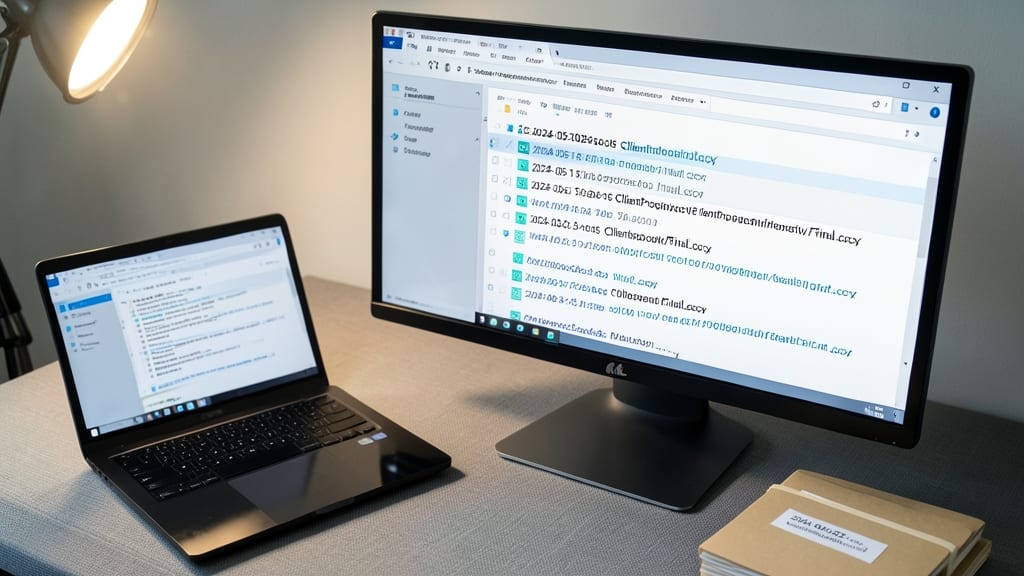
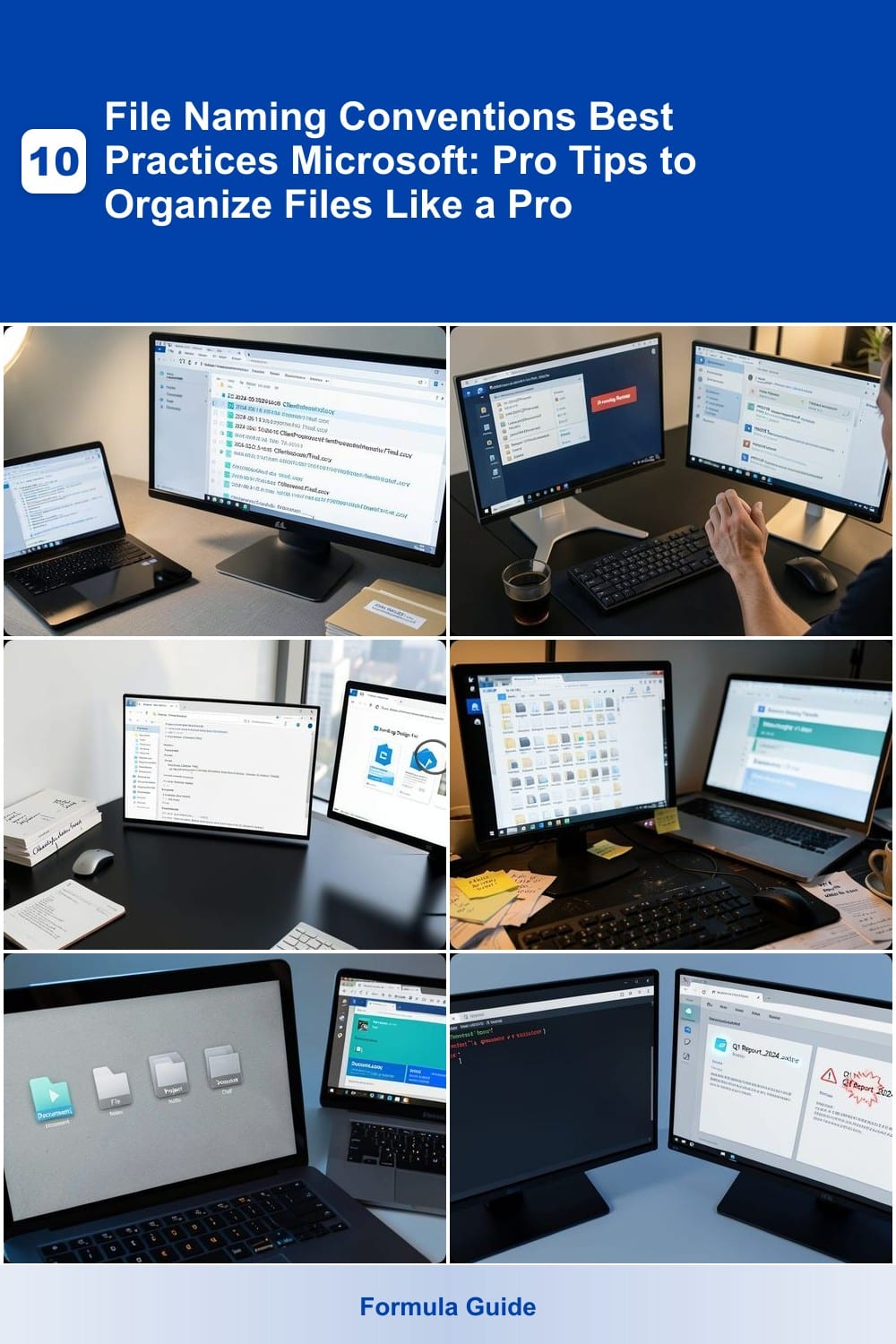
Tired of digging through folders to find the latest version of a client proposal? Date-based naming solves this by embedding YYYY-MM-DD into filenames, ensuring automatic chronological sorting in Windows Explorer and OneDrive.
This format—like 2024-05-15ClientProposalFinal.docx—lets you instantly see when a file was created or last updated. No more manual alphabetizing: files sort by date by default, making deadlines and revisions crystal clear. Perfect for marketing campaigns with tight timelines or finance teams tracking quarterly reports.
Marketers and analysts will love how this keeps track of iterations without folder chaos. Try it with your next project—your future self will thank you! ⚡
Project-Code Prefixes for Team Collaboration

Ever wasted minutes scrolling through a SharePoint library or Teams folder trying to find that one file? Project-code prefixes solve this by embedding ownership and context directly into filenames—like 'PROJ123ReportFinal.docx'—so every team member instantly knows who’s responsible and what the file contains.
This method thrives in Microsoft 365 environments where multiple contributors edit files. Use uppercase prefixes (e.g., 'MKT-2024' for marketing) followed by underscores to separate components. It’s especially powerful when paired with SharePoint metadata or Teams channels, where files are often shared across departments. The structure also prevents duplicate filenames during versioning.
Perfect for cross-functional teams or agencies juggling client projects. Once adopted, it turns chaotic folders into a self-documenting system where even new hires can navigate files effortlessly. ✨
Keyword-Based Naming for Search Efficiency
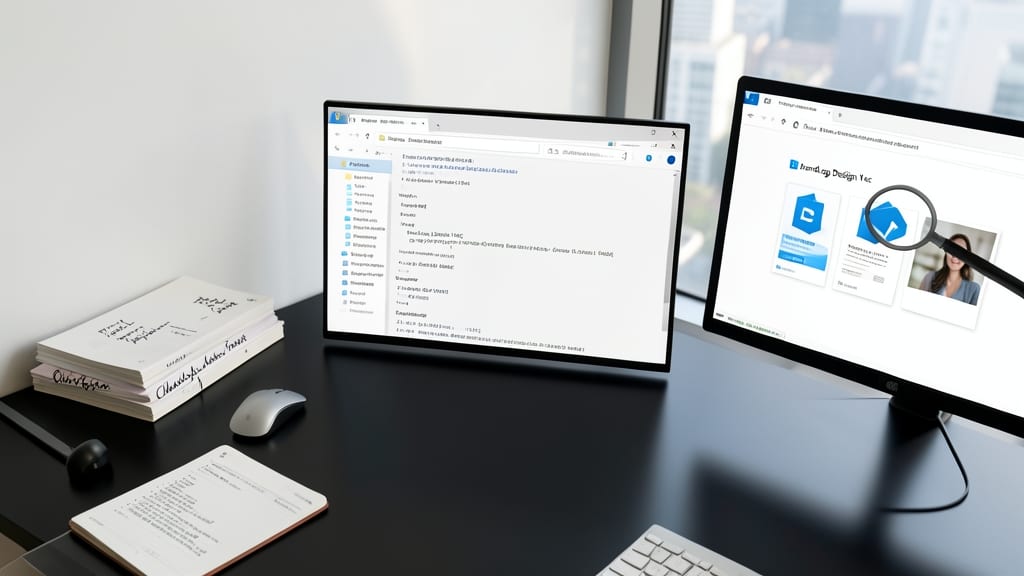
Tired of digging through folders to find that one research paper or creative asset? Keyword-based naming turns Windows Search into your personal file-finding superpower.
Use 2-3 descriptive terms separated by underscores (no spaces) to create instant searchability. For example, "BrandLogoDesignVector_2024.ai" lets you find it by typing just "BrandLogo" or "Design." This method works seamlessly with Windows Search indexing, making it perfect for creatives managing visual assets or researchers tracking documents by topic.
Ideal for freelancers, designers, and academics, this approach cuts search time dramatically while keeping filenames clean and professional. Try it with your next batch of files—your future self will thank you. ✨
Version Control with Suffix Numbers

Tired of digging through folders full of "FinalFinalDraft.docx" chaos? Suffix version numbers like "v2" or "v3" (e.g., "MarketingPlanv2.docx") transform your revision workflow into a clean, linear history—no more guessing which file is the "real" final version.
This method works seamlessly with Microsoft Office’s built-in version history and OneDrive sync, ensuring every "v3" update overwrites the previous without creating duplicates. The underscore separator prevents sorting issues (unlike spaces), and it’s instantly recognizable across teams. For example, "Budget2024v1.xlsx" clearly shows progression without folder clutter.
Perfect for marketing teams, legal docs, or any workflow with frequent edits—especially when collaborating in SharePoint or Teams. ⚡
File Type Extensions for Clarity

Ever opened a file only to realize it’s the wrong one because the extension was missing? This is why file type extensions are non-negotiable in Microsoft’s ecosystem—especially when collaborating across Windows and Mac systems.
Always include .docx, .xlsx, or .pptx (never just "Document" or "File"). This ensures OneDrive, SharePoint, and local storage recognize the file type instantly, preventing accidental overwrites or corrupted opens. Mac users, in particular, often see hidden extensions by default, so explicit naming avoids confusion.
Teams sharing files between platforms will appreciate this clarity—no more guessing whether a file is a Word doc or a PDF. It’s a small tweak with big payoffs for cross-device workflows. ✨
Underscores Over Spaces for Scripting

If you’ve ever run a PowerShell script that suddenly chokes on filenames with spaces, you’re not alone. The solution? Swap spaces for underscores—Q1Report2024.xlsx instead of Q1 Report 2024.xlsx—to ensure seamless execution in automated workflows.
Windows scripting environments (like PowerShell or batch files) treat spaces as delimiters, causing errors when parsing filenames. Using underscores eliminates this issue entirely. For example, Get-ChildItem "Q1Report2024.xlsx" works flawlessly, while Get-ChildItem "Q1 Report 2024.xlsx" risks syntax failures. This convention also aligns with Linux/Unix systems, making scripts portable across environments.
Developers, sysadmins, and IT teams relying on automation will appreciate this trick—it’s the difference between a smooth script and hours of debugging. ✨
OneDrive-Specific Naming for Sync Optimization

Tired of OneDrive sync errors or files stuck in limbo? The key lies in OneDrive-specific naming—a strategy that avoids sync roadblocks entirely. Special characters like !@#$% and filenames over 255 characters trigger sync failures, while poorly named files clog your offline access list.
Stick to alphanumeric characters and underscores (e.g., Q1SalesReport_2024.xlsx) and prioritize offline access for critical files via OneDrive’s "Always keep on this device" feature. This ensures seamless cross-device access while keeping sync speeds lightning fast. ⚡