
Tip & Trick
Struggling to master SharePoint’s powerful features? These eight beginner-friendly tips will help you streamline workflows, organize files effortlessly, and collaborate like a pro—without the steep learning curve.
Master the Quick Access Toolbar
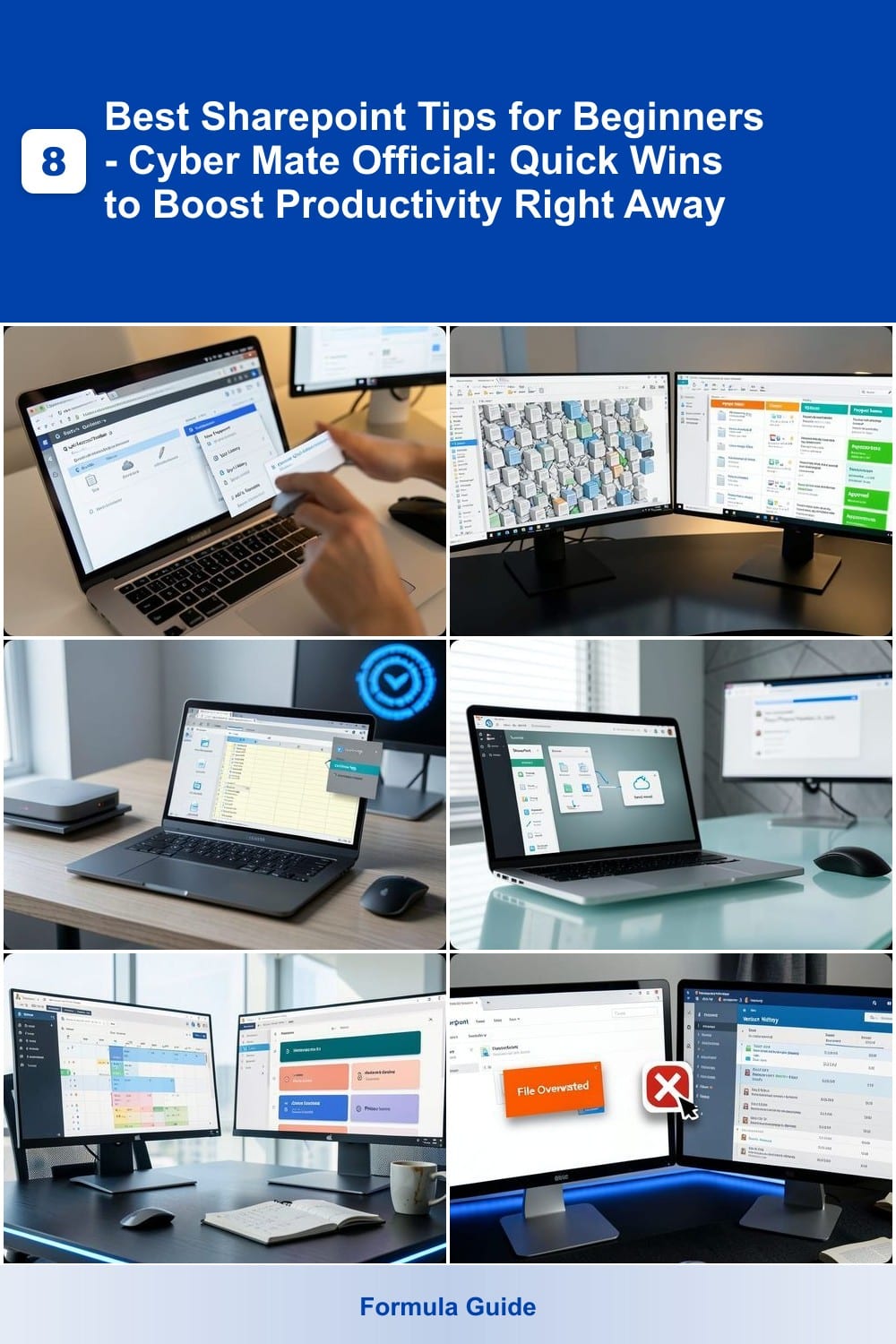
Tired of digging through menus to create new documents or sync libraries in SharePoint? The Quick Access Toolbar is your secret weapon—a customizable ribbon that puts your most-used commands just a click away.
Start by right-clicking the toolbar and selecting "Customize Quick Access Toolbar" to add icons like New Document, Sync Library, or Share. You can even pin frequently used commands like Check In/Out or Alert Me for instant access. The best part? These shortcuts sync across devices, so your setup follows you whether you're at your desk or working remotely.
Perfect for new SharePoint users or busy professionals who want to shave minutes off daily tasks, this toolbar is the ultimate time-saver. ⚡
Use Document Libraries Effectively
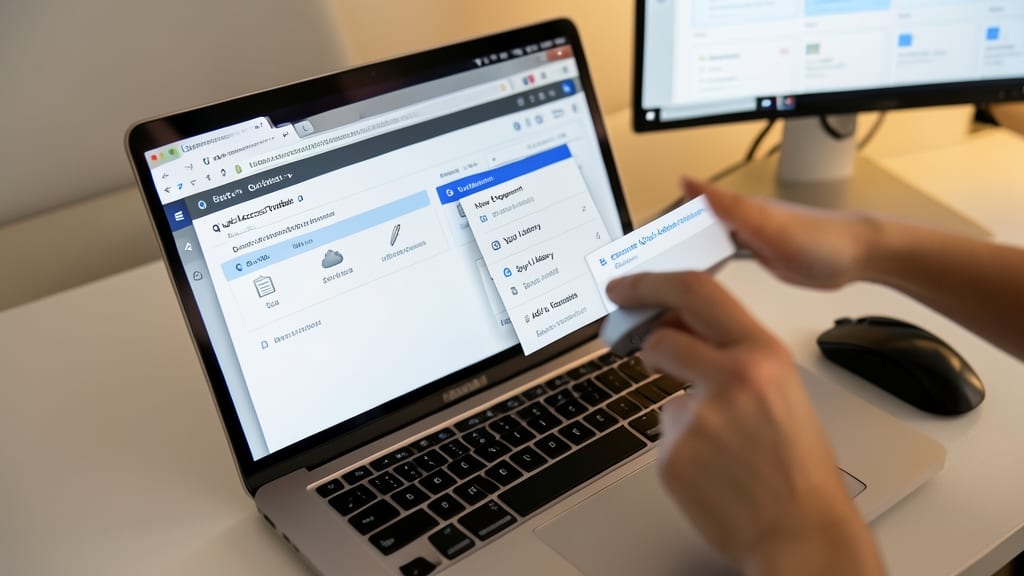
Drowning in a sea of files in SharePoint? Metadata columns turn chaotic document libraries into searchable powerhouses—no more digging through folders to find that one file. Add custom columns like Project Name, Owner, or Status to instantly filter and sort documents by what matters most.
With just a few clicks, you can create views like "All Active Projects" or "Overdue Contracts"—no manual sorting required. SharePoint’s built-in filters even let you combine multiple criteria (e.g., "Department: Marketing AND Status: Final Draft"). This is especially useful for teams juggling hundreds of files across departments.
Perfect for project managers, HR teams, or anyone coordinating files across multiple stakeholders. Start with 3-5 key columns (like "Priority" or "Due Date") to see how much faster your workflow becomes. ✨
Leverage OneDrive Sync for Offline Work
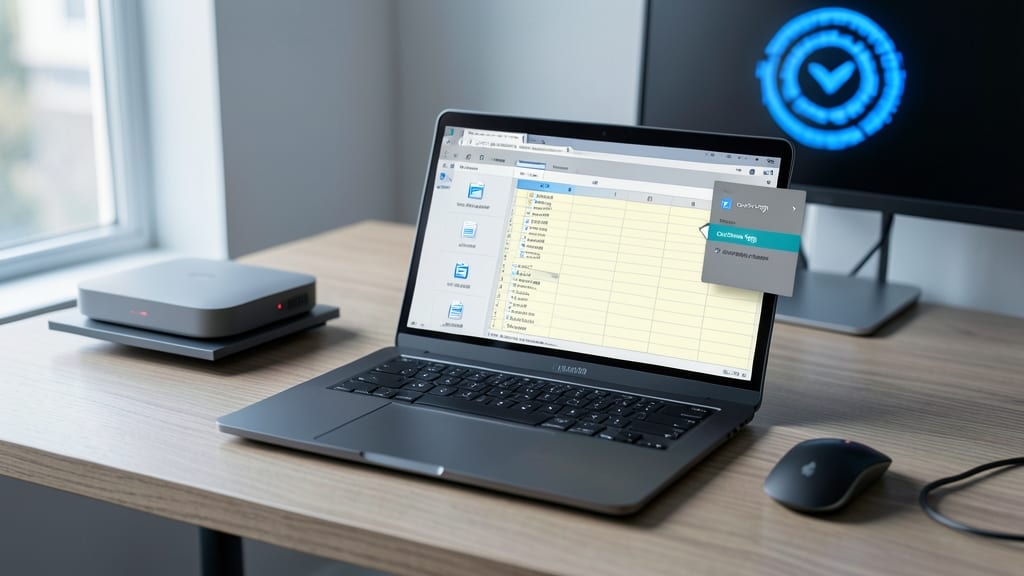
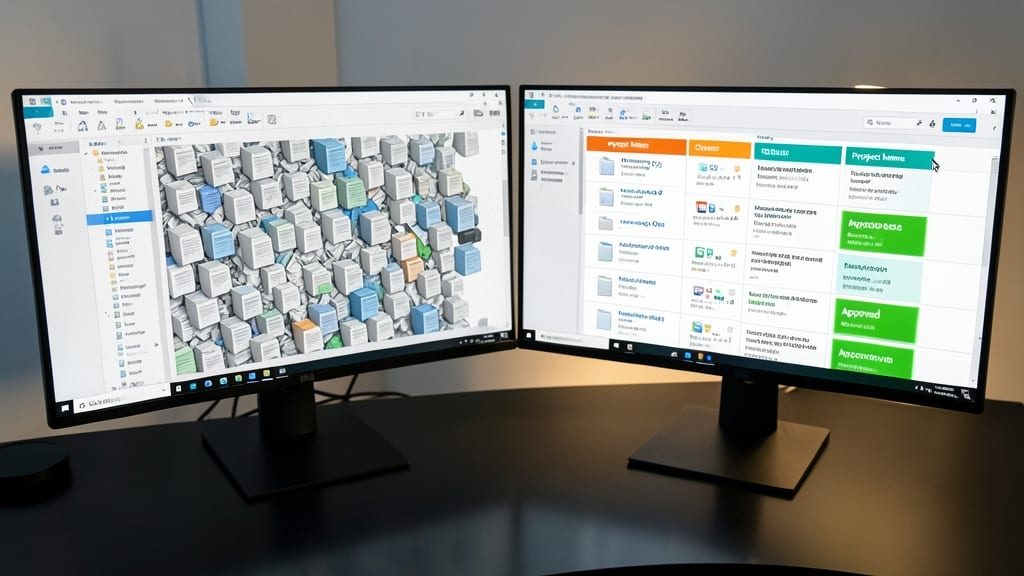
Tired of waiting for files to load when your Wi-Fi cuts out? OneDrive Sync bridges the gap by mirroring your SharePoint libraries locally—so you can edit spreadsheets, draft reports, or review documents without an internet connection.
Set it up in seconds: Right-click any SharePoint library, select Sync, and choose the folder location. Your files stay updated automatically when you reconnect, with real-time conflict resolution handling edits from multiple devices. The best part? No extra storage costs—it uses your existing OneDrive allowance.
This is a game-changer for remote workers, field teams, or anyone dealing with spotty connections. Sync your most critical libraries first, and you’ll never miss a beat again. ⚡
Automate Workflows with Power Automate
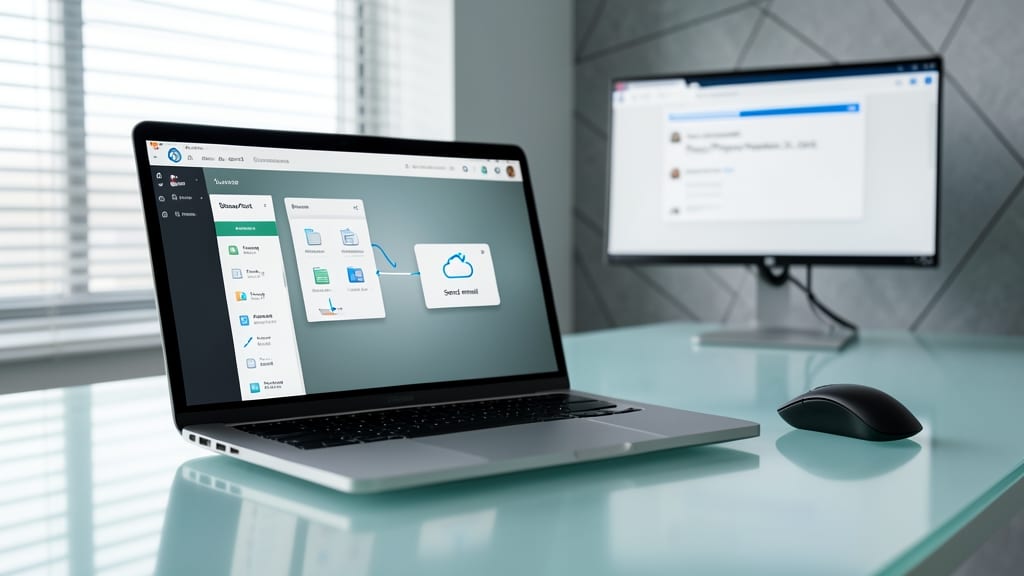
Tired of manually emailing team members every time a new document lands in SharePoint? Power Automate turns repetitive tasks into effortless workflows with just a few clicks—no coding required.
Start by creating a zero-code flow that triggers when a file is uploaded to a document library. Add a simple action to send an email with the file link, or even notify a Slack channel. Pre-built SharePoint templates cover common scenarios like approvals, notifications, and data collection—just customize the details. The drag-and-drop interface makes it intuitive, while the mobile app lets you monitor flows on the go.
Perfect for project managers tracking submissions or HR teams automating onboarding files, Power Automate shaves hours off weekly tasks. Give it a try—your future self will thank you. ✨
Create and Share Calendars Easily
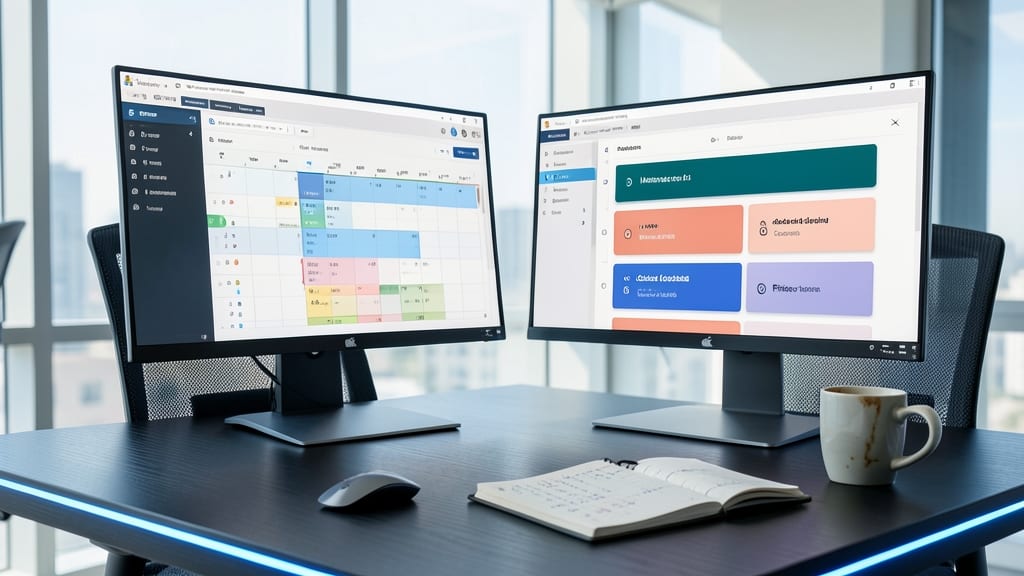
Juggling deadlines across departments? SharePoint’s calendar overlay feature lets you merge multiple team calendars into a single, color-coded view—no more tab-switching chaos.
Simply add calendars from different teams or projects, and SharePoint displays them with distinct colors. This real-time sync highlights conflicts instantly, while the drag-and-drop scheduling feature ensures everyone stays aligned. Perfect for project managers tracking cross-department milestones.
Ideal for teams using Microsoft 365, this tool cuts meeting planning time in half and keeps everyone on the same page—literally. ✨
Use Version History to Recover Files
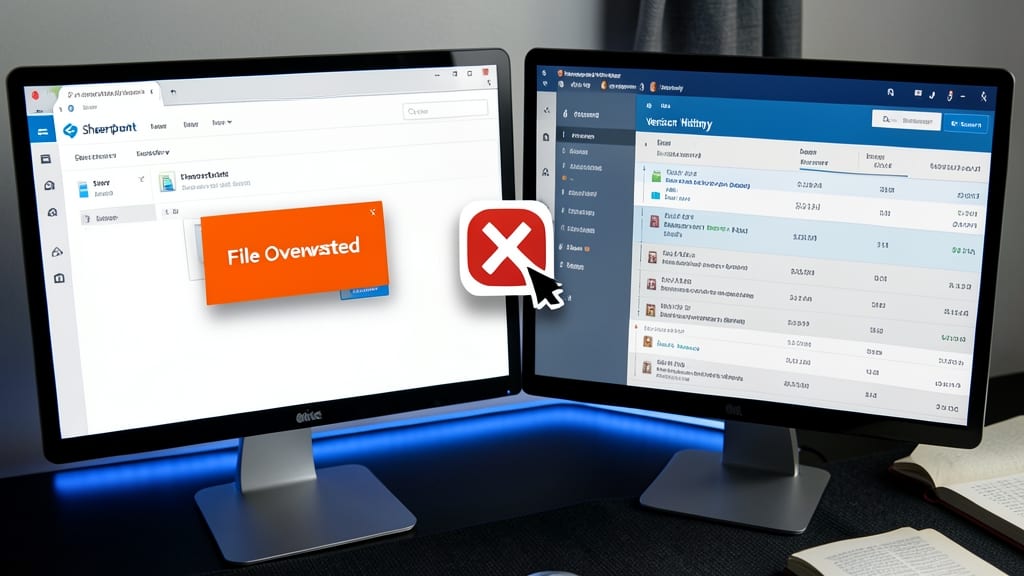
Panicked after accidentally overwriting a critical file? SharePoint’s Version History feature is your digital safety net, automatically tracking changes so you can restore previous versions in seconds—no third-party tools required.
Every time you save a document in a SharePoint library, the system quietly preserves up to 500 versions (configurable by admins). Simply navigate to the file’s "Version History" tab, select the timestamp you need, and click "Restore"—your work is back in seconds. This works for Word, Excel, PowerPoint, and PDFs, making it ideal for projects where edits happen frequently.
Perfect for freelancers juggling client revisions or students working on group projects, this feature eliminates the dread of lost work. No more "save as" chaos—just instant recovery. ✨
Collaborate with Co-Authoring in Office Files
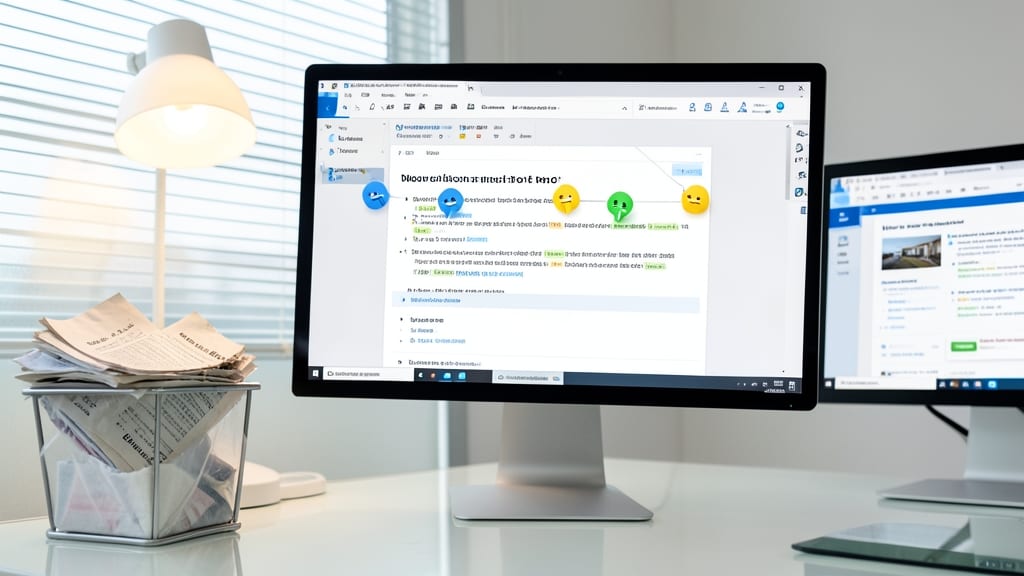
Tired of emailing drafts back and forth or losing track of the latest version? SharePoint’s co-authoring feature lets multiple users edit the same Word, Excel, or PowerPoint file simultaneously—no more "finalfinalv3.docx" chaos.
Simply open the file from SharePoint, and you’ll see other users’ cursors and edits in real time, with color-coded indicators for who’s making changes. Track changes and comments work just like in standalone Office apps, but with the added safety net of automatic versioning. It’s perfect for brainstorming sessions, report writing, or project planning where input from multiple people is needed.
This feature shines for remote teams or distributed workgroups where face-to-face collaboration isn’t possible. No more waiting for replies—just seamless teamwork with zero version conflicts. ✨
Customize Site Navigation for Teams
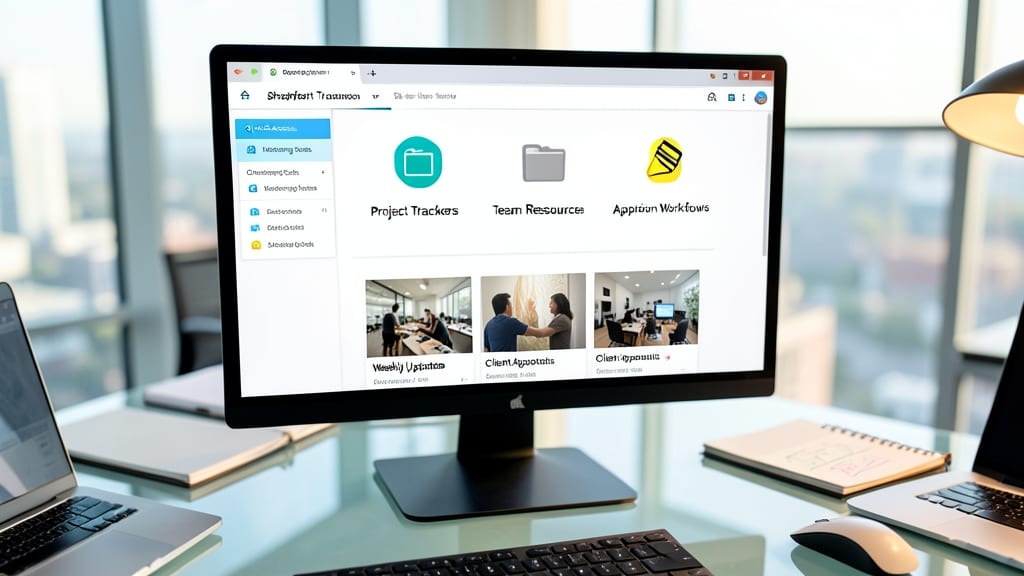
New team members often waste time hunting for the right links—until you customize SharePoint’s site navigation. A tailored menu ensures everyone lands on Project Trackers, Team Resources, or Approval Workflows in seconds, cutting down on "Where’s that file?" questions.
Edit the navigation bar in Site Settings > Navigation to add custom links, rearrange existing ones, or create dropdown menus for department-specific pages. You can even set a global navigation that appears across all subsites for consistency. This feature works seamlessly on both desktop and mobile, so remote teams stay aligned without extra clicks.
Perfect for HR onboarding, project managers, or new hires—anyone who wants to reduce friction in daily workflows. With just a few clicks, you’ll turn SharePoint from a maze into a streamlined command center. ✨